Add Table of Contents in Ghost CMS (No Theme Edit)
Alright, here’s a friendlier take on adding a table of contents to your Ghost blog:
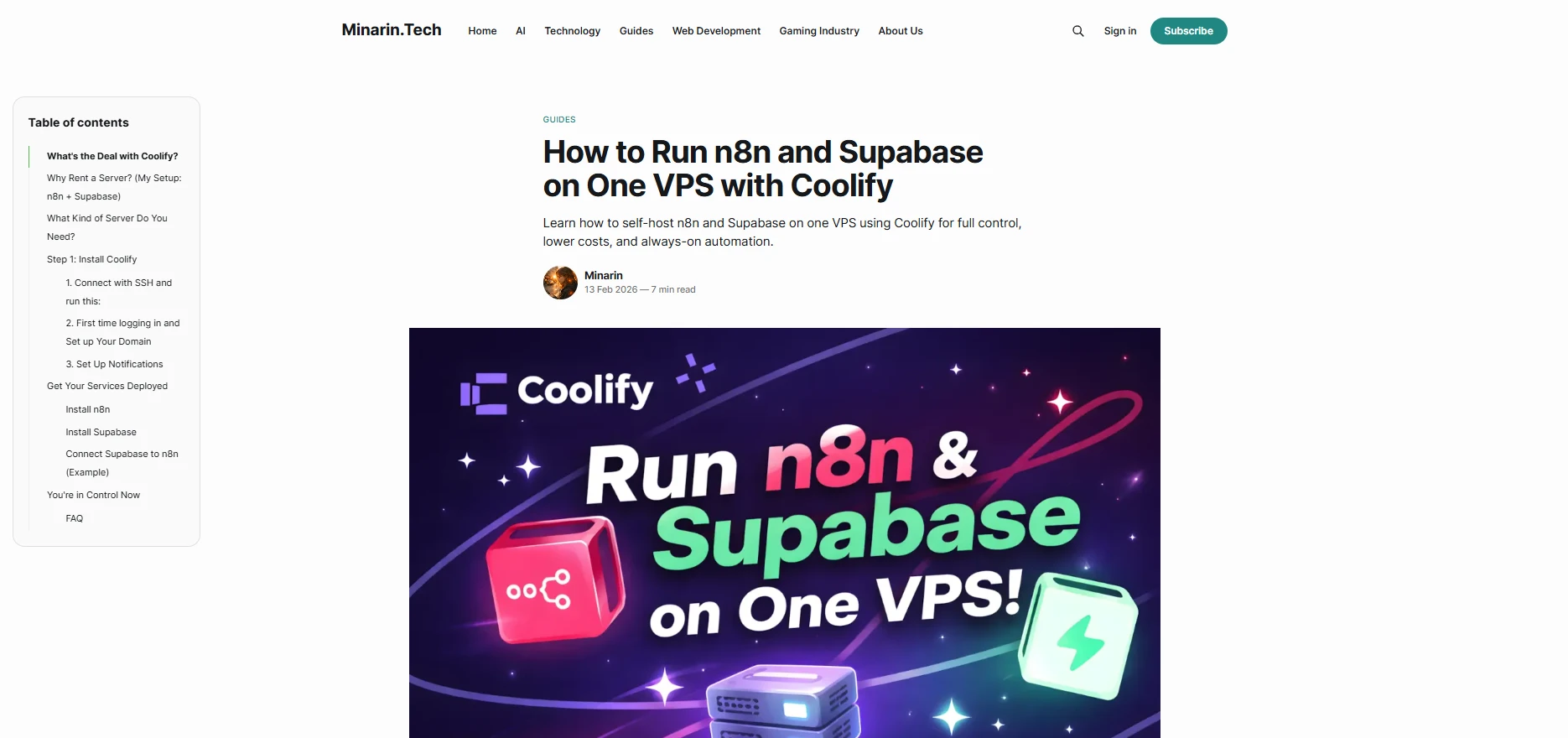
Want to make your Ghost blog posts easier to read and better for search engines? Adding a table of contents (TOC) is a simple trick! The quickest way to do it is by connecting TOCBOT using Code Injection and dropping a bit of HTML into your post. This helps people find things fast, keeps them on the page longer, and lets Google know what your content is all about.
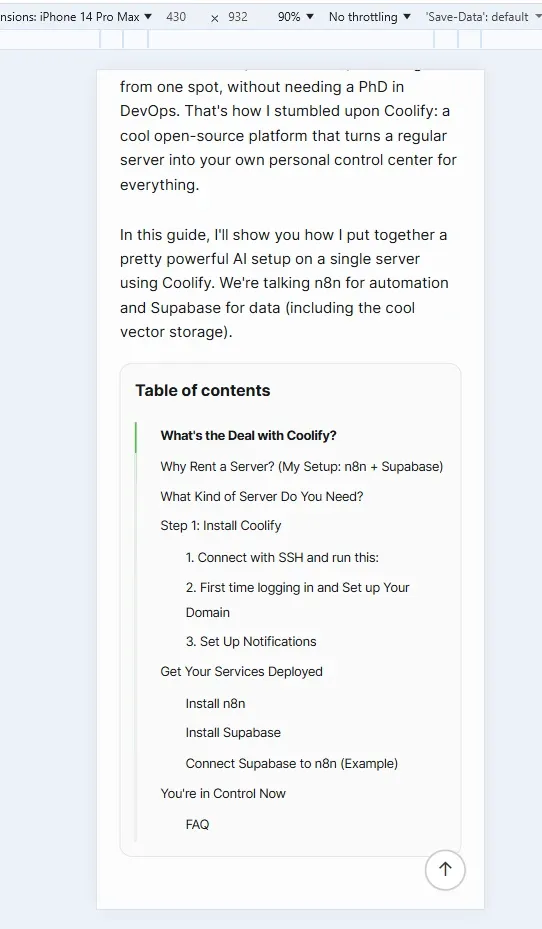
In this guide, I’ll show you how to:
- Add a TOC without messing with your theme
- Make it stick to the side on computers
- Make it work great on phones
- Keep your website running fast
I’m using the Source v1.5.0 theme, but this should work with most Ghost themes.
While you're enhancing your Ghost site with useful features like a table of contents, don't forget the importance of proper SEO for your affiliate content; learn how to add Ghost Sponsored Links: 3 Easy Ways to Add rel=”sponsored” Fast.
Table of Contents
Why a Table of Contents Rocks for SEO in Ghost
A TOC helps folks stick around:
- Readers can jump to the part they want
- They scroll down further
- They hang out on your page longer
On my sites, putting a TOC on long posts (like 5,000–8,000 words) bumped up the time people spent on the page by around 20%!
Google also gets a better sense of your content when:
- Your H2 and H3 headings make sense
- Each section answers a question
- Your content is in nice, clear chunks
That could help you snag a Featured Snippet in search results.
How to Add Table of Contents in Ghost CMS
Step 1. Hook Up TOCBOT with Code Injection
Head over to:
Ghost → Settings → Code Injection → Site Header
Then paste this in:
<link rel="stylesheet" href="https://cdn.jsdelivr.net/npm/[email protected]/dist/tocbot.css">
<script src="https://cdn.jsdelivr.net/npm/[email protected]/dist/tocbot.min.js"></script>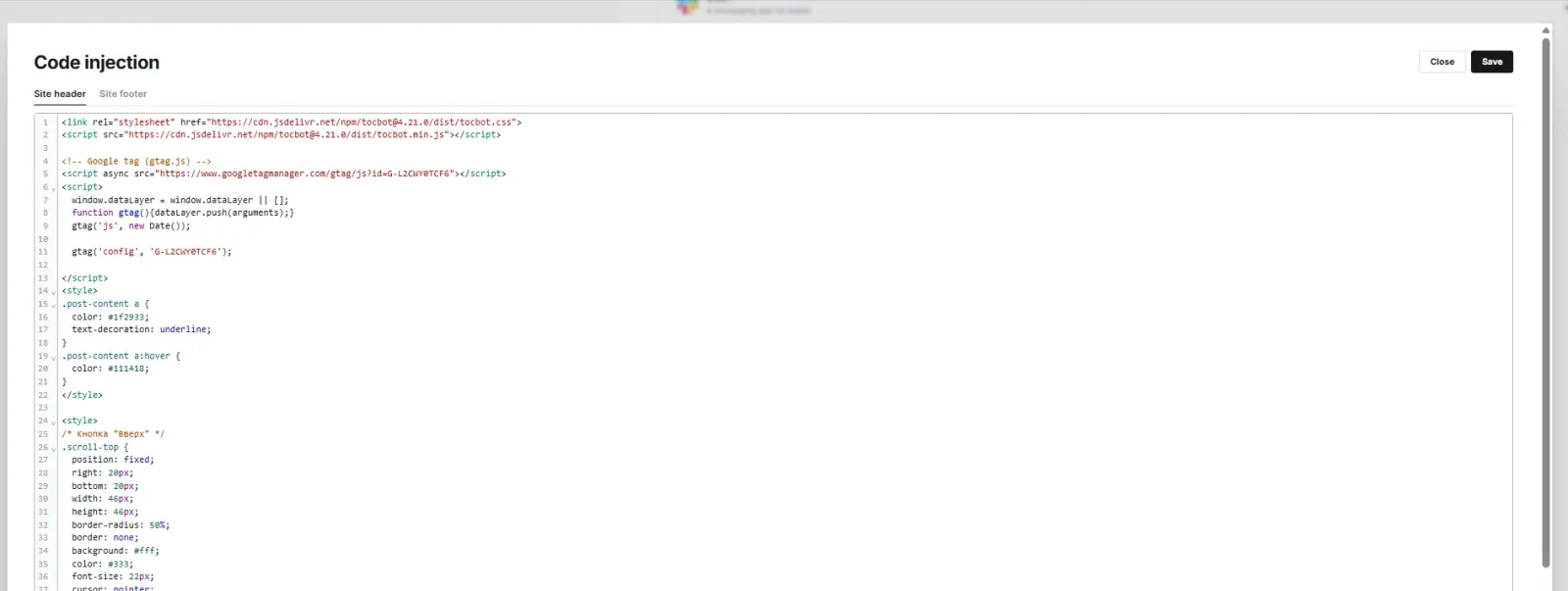
TOCBOT will automatically build a table of contents from your H2 and H3 headings.
Why use Code Injection instead of changing the theme?
- You don’t have to mess with the theme files
- Ghost updates won’t break anything
- It’s easy to change or remove later
Step 2. Drop the TOC Container in Your Post
Open your post and stick an HTML Card at the top:
<div class="toc-wrapper">
  <div class="toc"></div>
</div>
That’s where the table of contents will show up.
Step 3. Make It Sticky and Look Good on All Devices
Add this CSS inside the same HTML Card:
<div class="toc-wrapper">
  <div class="toc"></div>
</div>

<style>
/* ===== Общий стиль ===== */

.toc:before {
  content: "Table of contents";
  display: block;
  font-size: 18px;
  font-weight: 700;
  padding-bottom: 16px;
}

.toc {
  padding: 22px;
  border: 1px solid #e0e0e0;
  border-radius: 18px;
  background-color: #fafafa;
}

.toc a.toc-link {
  font-size: 14px;
  text-decoration: none;
  line-height: 1.5;
}

.toc li.toc-list-item {
  margin: 6px 0;
}

.toc-list .is-collapsible {
  margin-left: 14px;
  color: #666;
}

/* ===== ПК версия (липкий слева, НЕ сдвигаем статью) ===== */
@media (min-width: 1200px) {
  /* ширина контента (подставь свою, если у темы другая) */
  :root { --gh-content-width: 720px; }

  .toc-wrapper {
    position: fixed;
    top: 120px;
    width: 280px;
    max-height: calc(100vh - 140px);
    overflow: auto;
    z-index: 999;

    /* держим TOC слева, но “привязываем” к центрированному контенту */
    left: clamp(
      16px,
      calc((100vw - var(--gh-content-width)) / 2 - 280px - 24px),
      40px
    );
  }

  /* ВАЖНО: ничего не сдвигаем */
  .gh-content {
    margin-left: auto !important;
    margin-right: auto !important;
  }
}

/* ===== Мобильная версия ===== */
@media (max-width: 1199px) {
  .toc-wrapper {
    position: static;
    width: 100%;
    max-height: none;
    overflow: visible;
    margin: 20px 0;
  }

  .toc {
    padding: 16px;
    border-radius: 14px;
  }

  .toc a.toc-link {
    white-space: normal;
    word-break: break-word;
  }
}
</style>
This keeps things running smoothly because:
- It doesn’t mess up your page layout
- The code is small, so it won’t slow things down
- It’s all structured the right way
Step 4. Get That Table of Contents Working!
Go to:
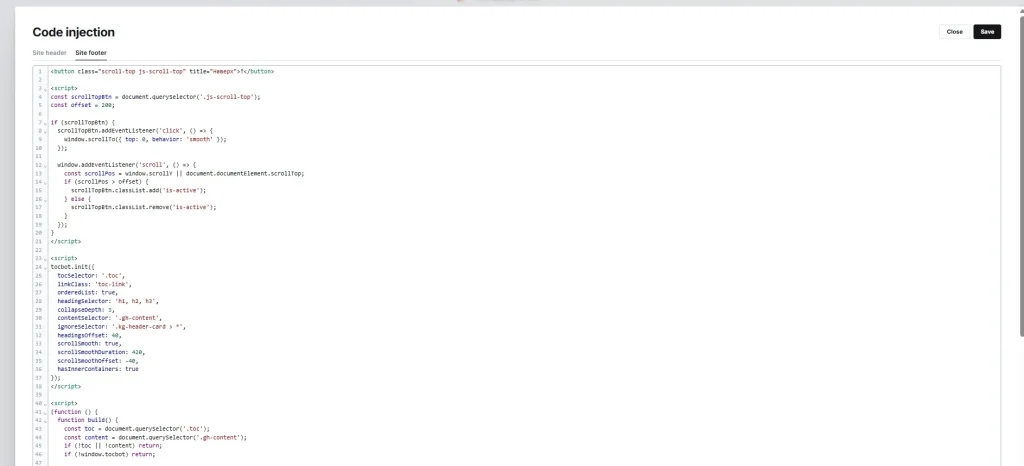
Settings → Code Injection → Site Footer
And add this:
<script>
tocbot.init({
  tocSelector: '.toc',
  linkClass: 'toc-link',
  orderedList: true,
  headingSelector: 'h1, h2, h3',
  collapseDepth: 3,
  contentSelector: '.gh-content',
  ignoreSelector: '.kg-header-card > *',
  headingsOffset: 40,
  scrollSmooth: true,
  scrollSmoothDuration: 420,
  scrollSmoothOffset: -40,
  hasInnerContainers: true
});
</script>

<script>
(function () {
  function build() {
    const toc = document.querySelector('.toc');
    const content = document.querySelector('.gh-content');
    if (!toc || !content) return;
    if (!window.tocbot) return;

    // если заголовков нет — не строим
    const heads = content.querySelectorAll('h2, h3');
    if (!heads.length) return;

    try { window.tocbot.destroy(); } catch (e) {}

    window.tocbot.init({
      tocSelector: '.toc',
      contentSelector: '.gh-content',
      headingSelector: 'h2, h3',
      orderedList: true,
      collapseDepth: 6,
      scrollSmooth: true,
      scrollSmoothDuration: 300,
      headingsOffset: 80
    });
  }

  // несколько попыток: сразу, после load, и через таймер (на случай дорендера)
  document.addEventListener('D
Why do this twice?
The Source theme sometimes loads stuff in weird ways. Doing it again makes sure the TOC shows up every time.
How to Structure Headings for SEO in Ghost
To get the TOC working right:
- Only use one H1 per page
- Use H2 for the main parts
- Use H3 for smaller chunks
- Don’t jump from H2 to H4
Messed up headings make the TOC and search engines sad.
Things to Avoid
- Adding TOCBOT to just one post instead of all of them
- Using H4 when you should use H2
- Making the TOC stick to the side without making it work on phones
- Using big, clunky plugins instead of small code bits
- Ignoring page speed
Boost Your Ghost CMS Performance with a Fast VPS
If you’re serious about SEO and performance, adding a table of contents is just the first step. To fully unlock speed, stability, and better rankings, your hosting matters just as much.
For example, many Ghost CMS users run their blogs on high-speed VPS servers with NVMe storage. This ensures faster page loading, better Core Web Vitals, and smoother TOC rendering — especially on long articles.
One solid option is using a VPS with NVMe drives, which gives you:
- ⚡ Faster loading times (critical for SEO)
- 🛡️ Built-in DDoS protection
- 🔧 Full root access for Ghost customization
- 🌍 Global server locations for better latency
👉 If you want to improve your Ghost blog performance, you can check out a high-speed VPS solution here: Fast NVMe VPS Hosting for Ghost CMS
According to hosting specs, modern VPS providers offer NVMe storage, unlimited bandwidth, and 24/7 support — which makes them ideal for scalable Ghost blogs and high-traffic content sites :contentReference[oaicite:0]{index=0}.
In short: TOC improves structure, but a fast VPS ensures your content actually loads instantly — and that’s what both users and Google care about.
In Conclusion
Adding a table of contents to Ghost is quick and easy, even without changing your theme.
You’ll get:
- Well-organized content
- Easy navigation
- More people sticking around
- A boost for your SEO
Ghost doesn’t have a built-in TOC thing like WordPress, but it gives you more power and flexibility. And that’s better for SEO in the long run.
FAQ
Do I need to mess with my Ghost theme?
Nope! Code Injection does it all.
Will this work with other Ghost themes?
Yep. If your theme uses something other than .gh-content, change it in the code.
Will TOCBOT slow down my site?
Nope. It’s tiny and won’t hurt your page speed if you do it right.
Can I hide some sections in the TOC?
Yep. Check out the collapseDepth option in TOCBOT.
Does a table of contents help rankings?
Sort of. It makes people happier, which helps SEO.