Enable NVIDIA DLSS 4.5: Complete Guide to Boost FPS and Graphics
So, I was chatting about DLSS 4.5, and tons of people were scratching their heads, wondering how to use it to make games look sharper and run smoother without messing everything up.
Here’s the straight scoop – quick, clean, and no BS.
Boosting your FPS is essential for experiencing the incredible detail in games that truly look like real life, such as those highlighted in Realistic Graphics Games: 10 Mind-Blowing Titles That Look Like Real Life.
Table of Contents
How to Enable NVIDIA DLSS 4.5 (Step-by-Step)
Quick Setup
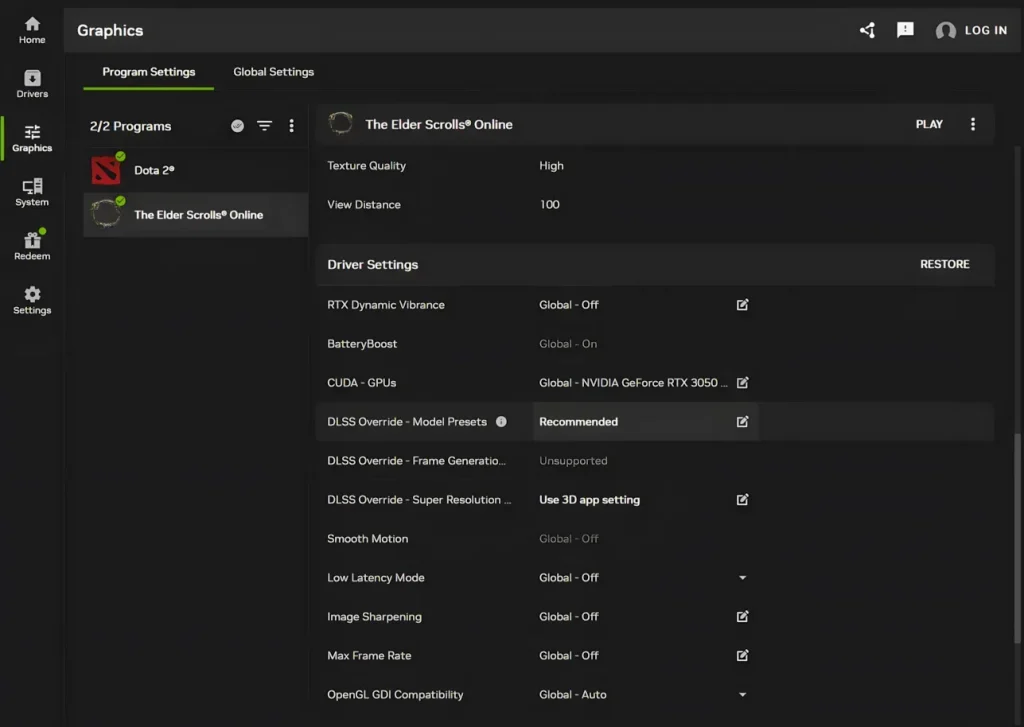
- Get the newest driver Nvidia
- Go to Graphics and pick your game.
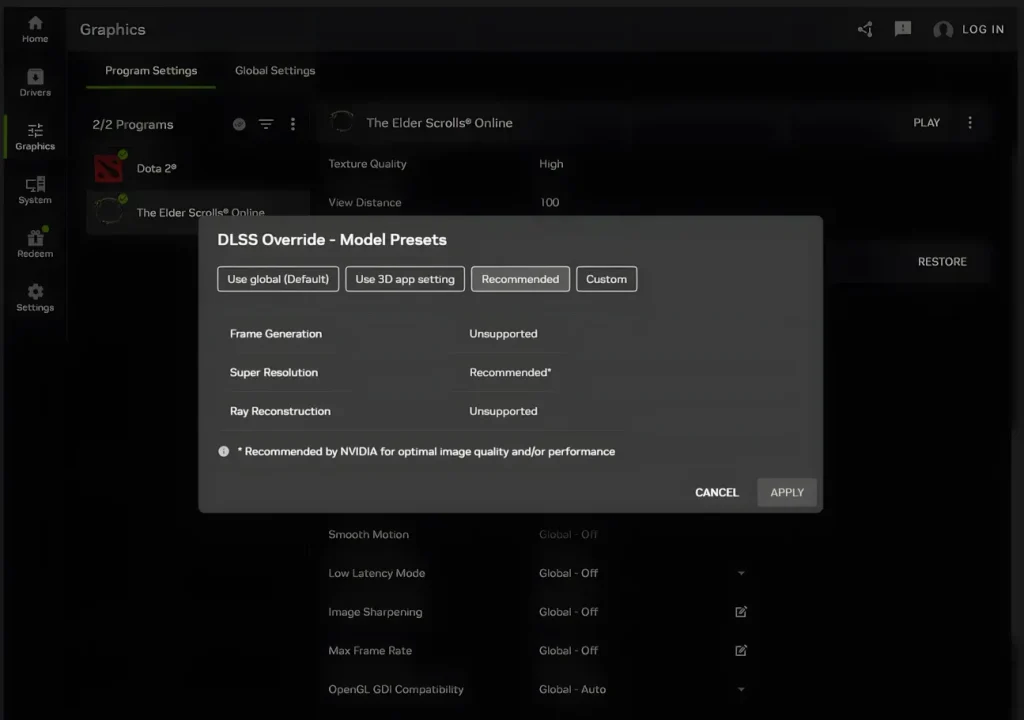
- Find DLSS Override – Model Preset.
- Hit Recommended.
That’s all there is to it. Seriously.
What You Just Did
When you picked Recommended, you told the Nvidia App to swap out the DLSS stuff in the game (which is often old) with the freshest version from Nvidia.
Basically, you upgraded the game’s brain.
DLSS Technologies Explained
DLSS isn’t just one trick. It’s like three technologies all working together.
1. Frame Generation
Think of this as a magician. It makes up frames and sticks them between the real ones to boost your FPS.
Turn this on if your game runs at around 40–50 FPS or higher. If it’s lower, things might get a little weird.
2. Super Resolution
This is where the cool stuff happens.
In the game settings, you get to pick from these:
- Quality
- Balanced
- Performance
- Ultra Performance
Each one gives you a different mix of how good the game looks and how fast it runs. Pick the one that looks good to you and runs well on your computer. Then, don’t worry about it.
3. Ray Reconstruction
If you’re using ray tracing, this thing cleans up the lighting and shadows. You get nicer reflections, better lighting overall, and fewer weird visual glitches.
Why Recommended Is Usually the Best Choice
If you stick with Recommended, the Nvidia App always puts the latest DLSS models into your game. No messing around. No guessing.
It’s like putting your car on cruise control – it works for pretty much everyone.
Got an RTX 20 or 30 Series Card? Read This!
If you try the Performance or Ultra Performance modes and your game suddenly runs worse, don’t freak out.
Some older graphics cards might slow down a bit with the new models. If it bugs you, just switch Super Resolution to Preset K by picking Custom at the top.
Easy fix. No big deal.
FAQs
What’s New in DLSS 4.5?
Nvidia tweaked the Performance and Ultra Performance models. Now, they make the game look cleaner than before.
But on really old cards, that might slow things down a tiny bit.
Looks better, but takes a little more power.
What Are Presets?
resets are just differen
t versions of the DLSS models for each mode:
Quality → Preset K
Performance → Preset M
Ultra Performance → Preset L
You can actually force any preset into any mode if you want.
But really, most people don’t need to bother.
If you picked Recommended, the system does all this for you. Just let it do its thing.
I Installed DLSS 4.5 and Lost FPS
Here’s what probably happened.
When it first came out, Nvidia told people to update the drivers and get a test version of the Nvidia App that picks presets automatically. A lot of people picked the Latest option, which sometimes stuck Preset M or L into Quality mode, even though they weren’t supposed to be there.
Of course, the game ran slower.
The new Nvidia App got rid of that confusing option, so problem solved.
But Bloggers Saw FPS Drops!
Yep. Some reviewers intentionally forced Preset M and L into Quality mode to see what would happen.
Some liked how it looked. Others didn’t.
The game ran slower because those presets are made for different settings. Testing stuff in the wrong way is going to cause problems.