
Install WordPress with FastPanel: Step-by-Step Guide
Forget messing around with complicated stuff to get WordPress running. FastPanel makes it super easy by including WordPress right there in its interface. It’s just a few clicks, and boom – your site is live!
The FastPanel setup described in this guide is based on my real-world usage on Senko Digital hosting. I personally run FastPanel there, and all steps in this article reflect an actual working environment. If you’re looking for hosting where FastPanel is already installed and ready to use, Senko Digital is one option worth checking out.
This guide will walk you through how to install WordPress using FastPanel. It’s good for anyone who wants to start a blog, a business site, or show off their work – especially if you like things done quickly.
After getting your WordPress site up and running, ensuring it ranks well in search engines is crucial. Discover how to improve your site's visibility with our WordPress SEO Checklist 2026: 10 Powerful Fixes to Boost Rankings Fast.
Table of Contents
Step-by-Step Guide to Install WordPress with FastPanel
Step 1: Log In to FastPanel
First, get into your FastPanel control panel. Usually, you can find it at:
https://your-server-ip:8888Type in your username and password. Once you’re in, you’ll see the main dashboard.

Step 2: Create a New Website
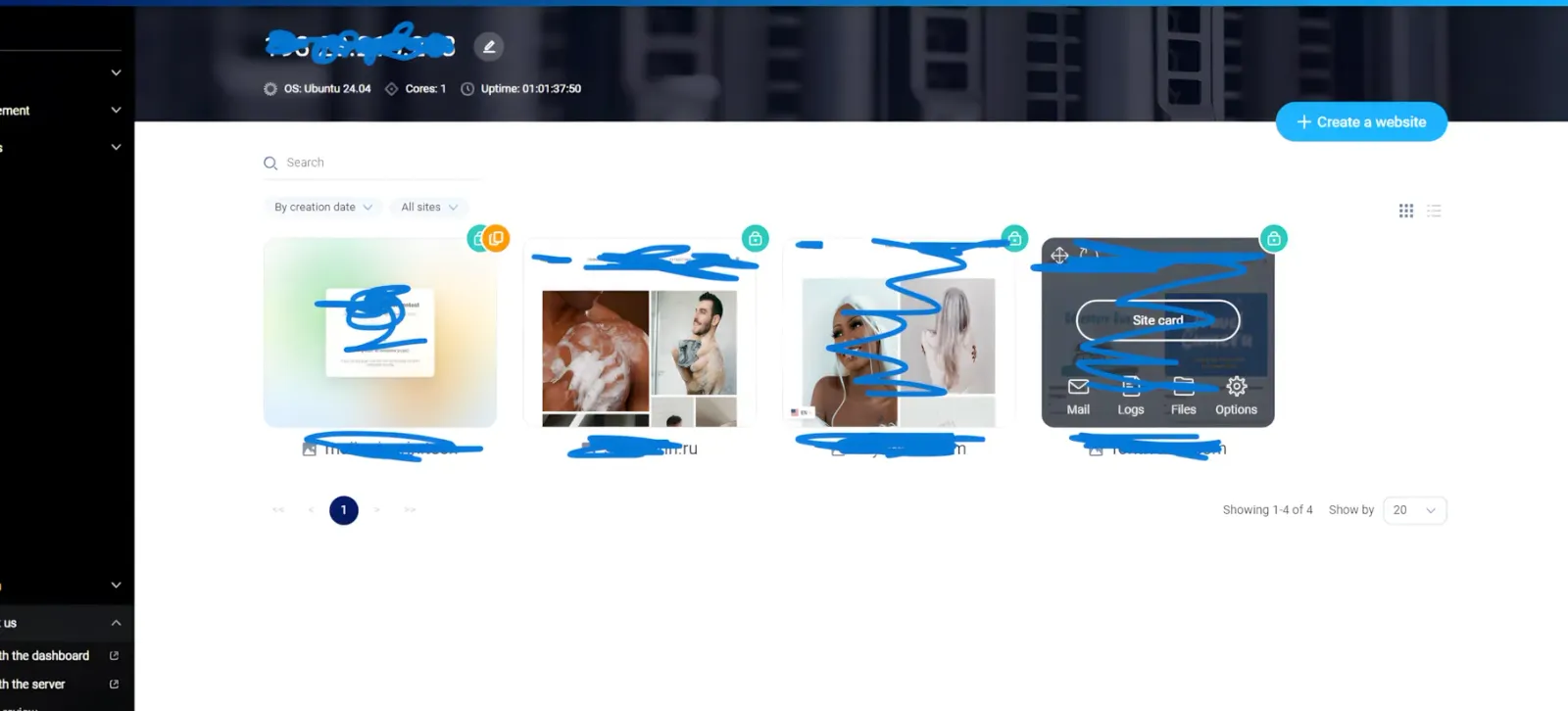
On the dashboard, look for something like Create site. It might be a button or a plus sign, usually in the Websites area or at the top.
Clicking this starts the site creation thingy, which will guide you through the rest.
Step 3: Choose WordPress CMS
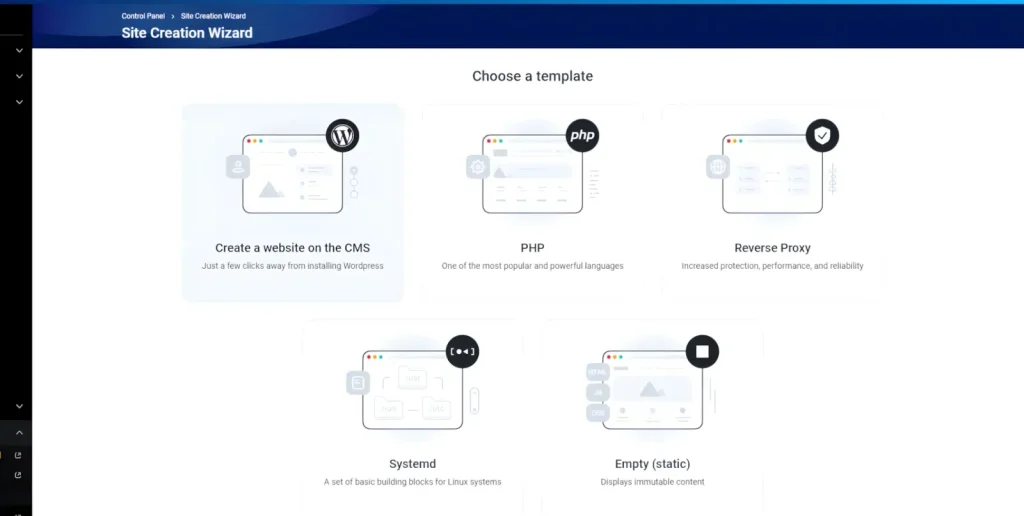
FastPanel gives you two choices for starting a site: Manual and CMS-based.
Go with the CMS-based option and choose WordPress. This tells FastPanel to get everything ready for WordPress.
Then, hit Next step.
Step 4: Configure Domain Settings
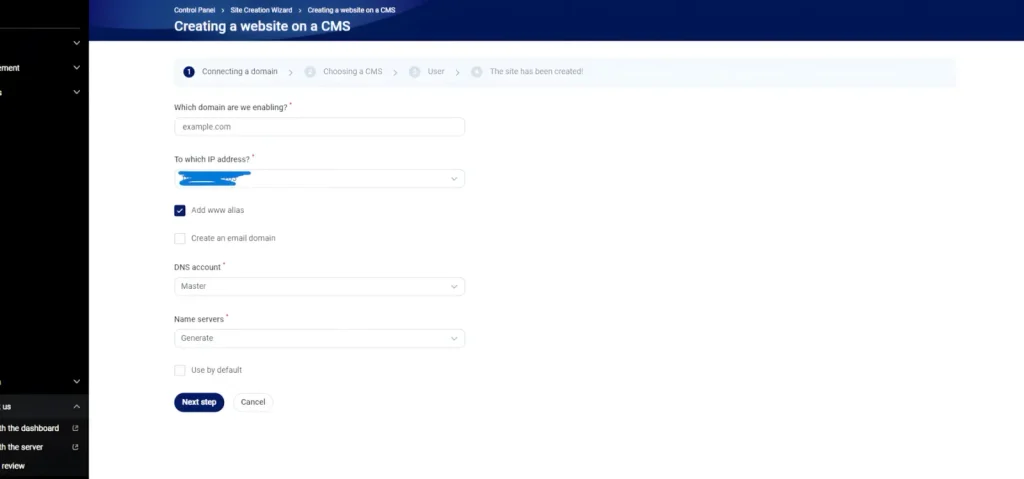
Now, tell FastPanel what domain name you’ll use for your WordPress site.
- Type in your main domain.
- Turn on www alias if you want both
example.comandwww.example.comto work. - If FastPanel handles your DNS, it’ll automatically take care of the technical stuff.
This saves you from having to mess with DNS settings yourself.
Step 5: Setup WordPress & Database
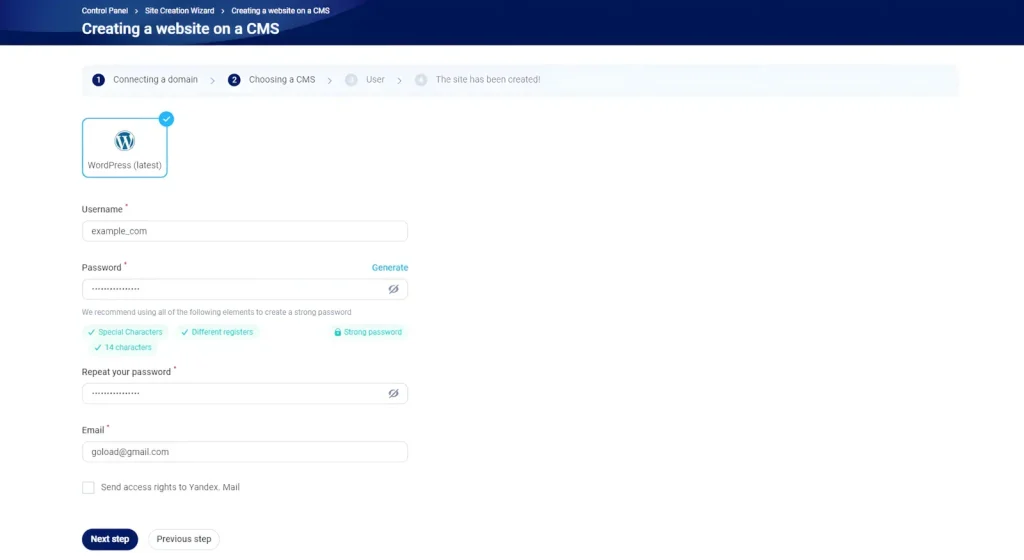
This is where you name your site and set up your login info.
You’ll need to enter:
- Site Name: This is what people will see at the top of your website.
- Admin Login: Pick a username that’s not just admin.
- Admin Password: Make it strong!
- Admin Email: This is for alerts, password help, and notifications.
- Database Settings: FastPanel usually makes these up for you, but you can change them if you want.
This sets up WordPress and its database without you having to deal with any complicated code.
Step 6: File Access Permissions
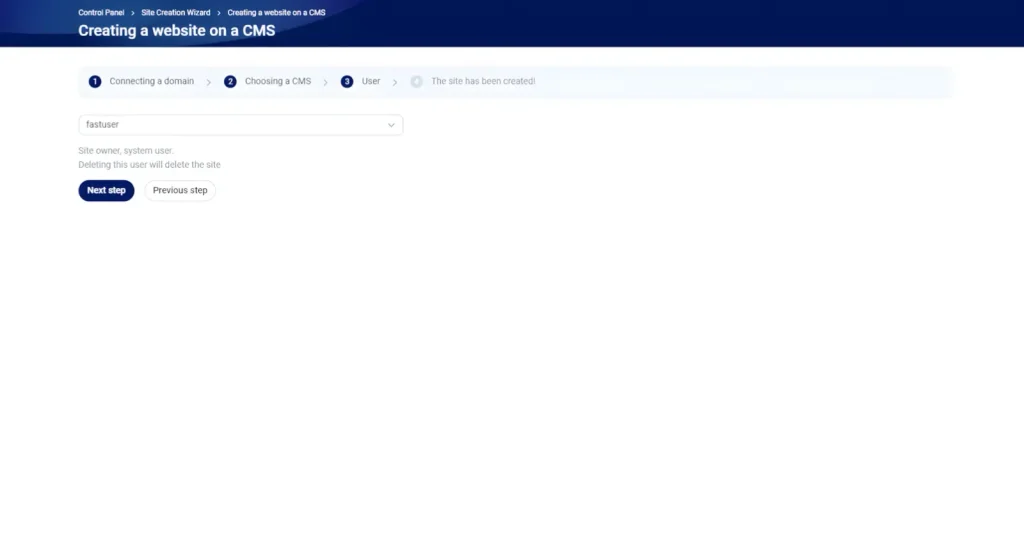
Before it starts installing, FastPanel wants to know who should have access to the site’s files.
- Default ownership gives access to your current FastPanel user.
- Multi-user access lets you add other accounts – like for developers – who can also manage the site.
This is helpful if you’re working with a team.
Once you’ve set this up, hit Next step to start the installation.
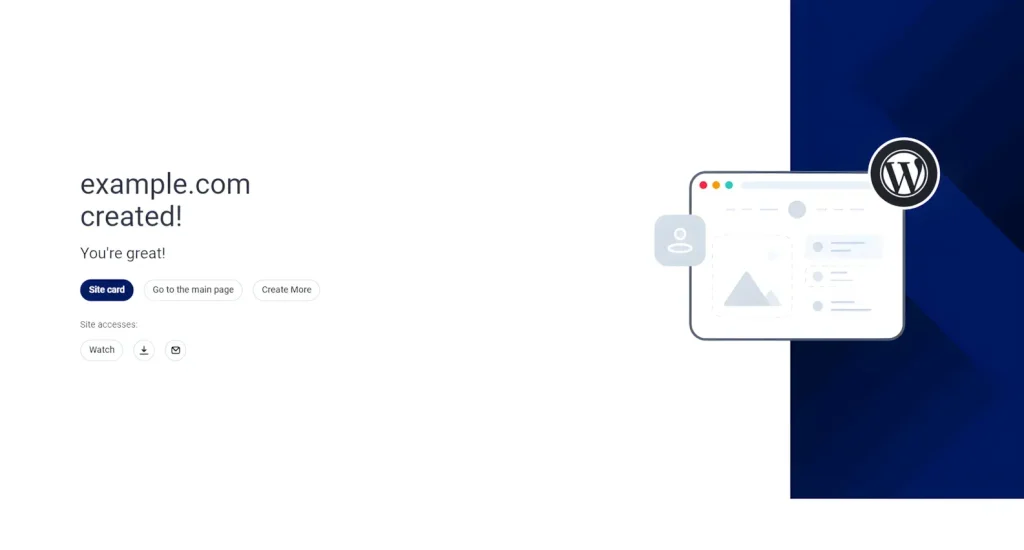
Step 7: Access WordPress Dashboard
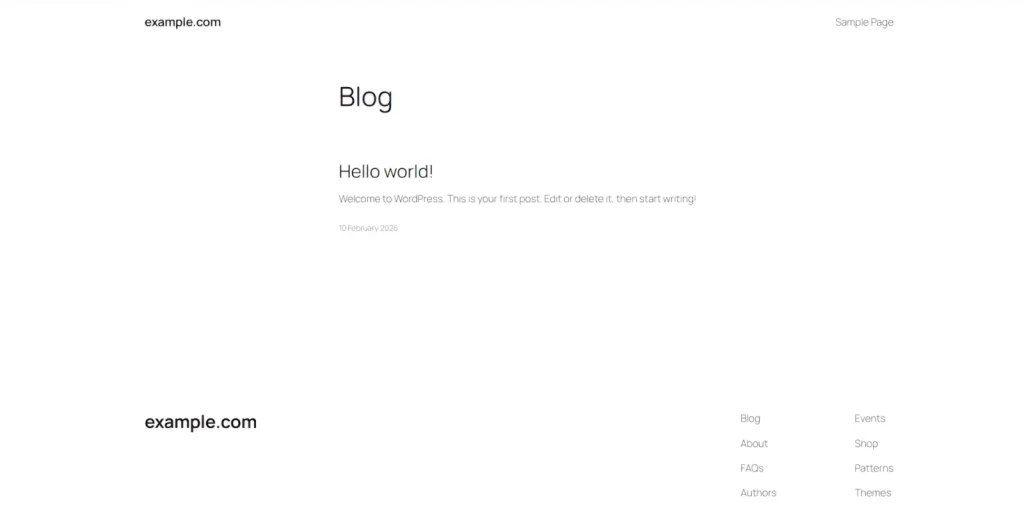
When it’s done, FastPanel will show you a message with your login info.
To get to WordPress:
- Log in with the username and password you created.
Go to
https://yourdomain.com/wp-adminNow you’re in the WordPress dashboard, where you can write posts, pick a theme, and add extra features.
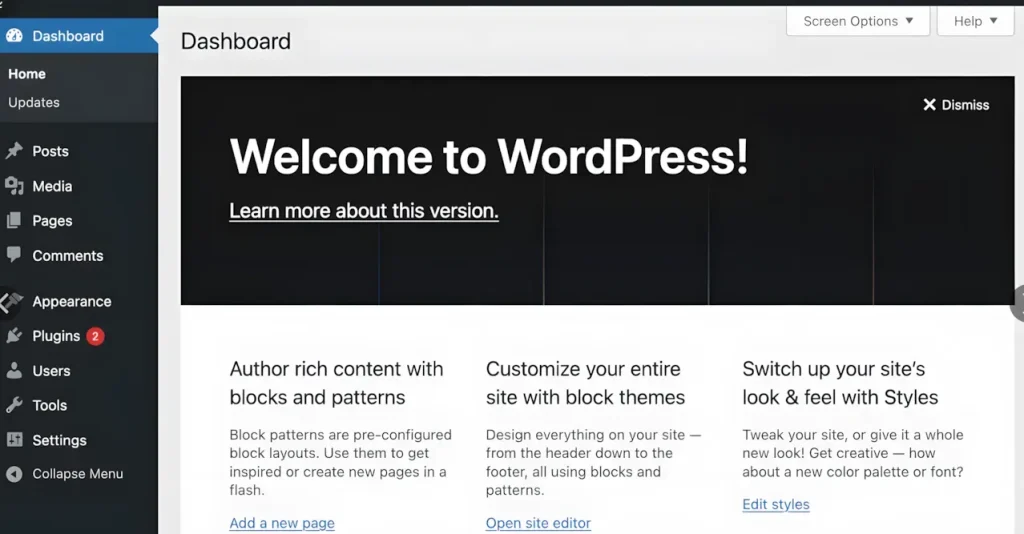
In Conclusion
Installing WordPress with FastPanel is really simple. It takes away all the confusing parts, so you can focus on your site’s content and design.
With WordPress up and running in minutes, FastPanel is a good choice for anyone, whether you’re just starting out or have been building sites for years. If you get stuck or need to make things run faster, you can always ask for help from your hosting provider.
SPONSORED
Your WordPress site isn’t ranking… and you don’t know why? 🚨
Inside this 41 SEO & Marketing eBooks bundle you’ll discover WordPress speed hacks, SEO secrets, traffic strategies & ranking blueprints
FAQ: Installing WordPress with FastPanel
What is FastPanel?
FastPanel is a free server control panel that simplifies website management, domains, databases, and one-click CMS installations like WordPress.
Is FastPanel good for beginners?
Yes. FastPanel is beginner-friendly and designed to remove the complexity of server management. You can install WordPress in just a few clicks without technical knowledge.
Do I need Linux or command-line experience?
No. All essential tasks, including WordPress installation, are handled through FastPanel’s web interface. The command line is optional and only needed for advanced setups.
Can I host multiple WordPress sites with FastPanel?
Yes. FastPanel allows you to create and manage multiple websites and domains on a single server, depending on your server resources.
Does FastPanel support SSL and HTTPS?
Yes. FastPanel supports automatic SSL certificate installation using Let’s Encrypt, so your WordPress site can run securely over HTTPS.
Is FastPanel suitable for production websites?
Yes. With proper hosting and basic security configuration, FastPanel is suitable for live websites, blogs, and small-to-medium business projects.