Set Up Secure VPN Server with Amnezia (Step-by-Step Guide)
This guide walks you through getting Amnezia VPN up and running on your own server. The idea is simple: you get your very own VPN that you control.
Amnezia VPN is a free, open-source VPN that works with different setups, but it’s really designed to be used on your own server. Instead of trusting some company, you’re basically building your own secure tunnel.
Why does that matter?
Well, lots of VPN companies keep logs, track how you use the service, or make money off your data. When you use Amnezia VPN on your own server, all your web traffic goes through your stuff. No middleman. No weird rules. No one watching over your shoulder.
You’re in charge, not just hoping for the best.
If you're looking to explore other robust VPN options, you might find our guide on how to set up a VLESS Reality VPN Ubuntu: 21-Step Powerful Setup Guide (3X-UI) incredibly helpful for a fast and modern solution.
Table of Contents
Step-by-Step Guide to Set Up Secure VPN Server
Setting up Amnezia VPN on your server is pretty straightforward if you take it step by step.
Step 1 – Download Amnezia VPN
First, get the Amnezia VPN app for your computer or phone. You can find it here:
It works on pretty much everything. And the app is free, as in totally free.
Keep in mind though:
The app only connects to a VPN that’s already set up. You can connect by:
- Scanning a QR code
- Typing in a setup key
- Loading a setup file into the app
If you do not yet have a VPS, the next stage is acquisition.
Step 2 – Choose VPS Server
If you don’t already have a server (called a VPS), you’ll need to get one that works with Amnezia.
What Your Server Needs
- System: Linux (Ubuntu 22.04 or Debian 11 are good choices)
- Processor: x86-64
- Type: KVM
- IP: Needs a public IPv4 address
- Memory: 2 GB is best, but 1 GB will work
- Extras: You don’t need any special software pre-installed
SPONSORED
You can choose Aéza — they offer VPS powered by modern AMD Ryzen processors, fast NVMe SSD storage, up to 1 Gbit/s network speed, and built-in DDoS protection. Their servers are located in reliable Tier III data centers with uptime up to 99.9%, ensuring stable and smooth VPN performance.
After registering via this link, you will receive a 15% bonus on your first top-up. The bonus is valid for 24 hours.
After you sign up, they’ll send you some info by email, including:
- IP address
- Username (usually root)
- Password
Keep that info safe!
Step 3 – Configure Self-Hosted VPN
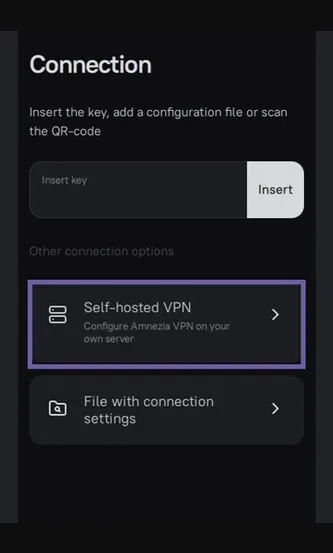
Once your server is ready, fire up the Amnezia app and pick:
Self-hosted VPN
This tells the app you want to set up your own server, rather than connect to someone else’s.
Type in Your Info VPS
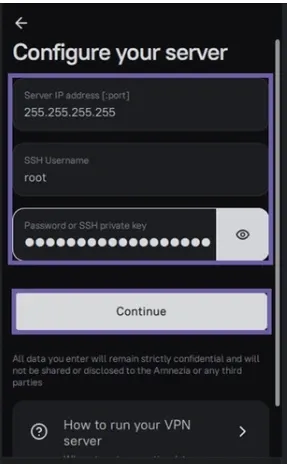
Enter the server details exactly as they were sent to you. Double-check it, and then hit go.
The app will then ask how strict the internet is where you are.
Step 4 – Select Network Restrictions
This tells Amnezia which VPN setup to use.
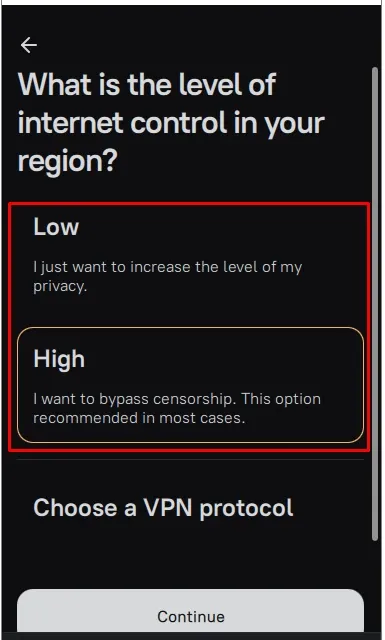
Strict
If you pick High, it’ll set up the AmneziaWG thing.
This is for places where the internet is heavily censored and regular VPNs get blocked. AmneziaWG tries to hide your traffic so it’s harder to detect.
Not-So-Strict
If you pick Low, it’ll set up WireGuard.
WireGuard is fast and doesn’t use a lot of resources. It’s good if VPNs aren’t usually blocked where you are, but it’s possible for someone to tell you’re using WireGuard, so it might not work in really locked-down places.
You can change this later if you need to.
Step 5 – Install VPN Protocol
If you like to get into the details, you can pick a specific setup yourself.
Click Choose a VPN
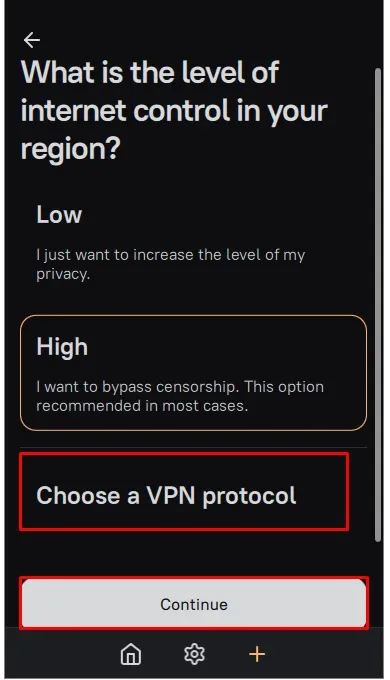
Look through the list and pick one you like
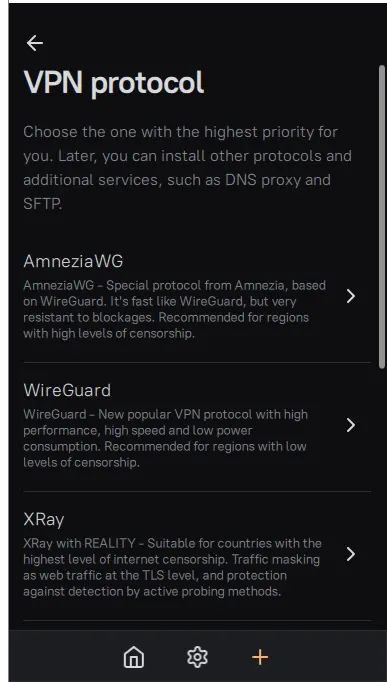
Click Install
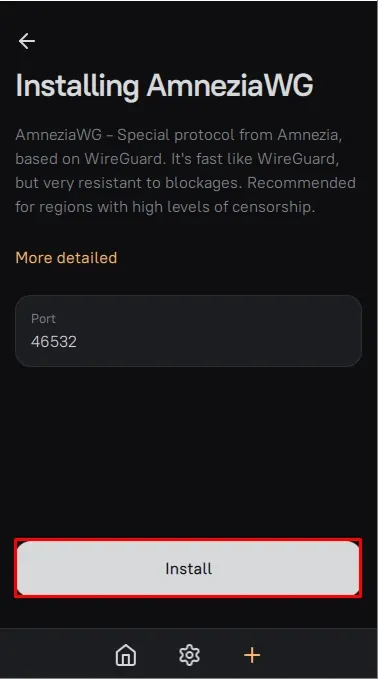
The app will show you how far along it is. It might take a few minutes, depending on your server and what you picked.
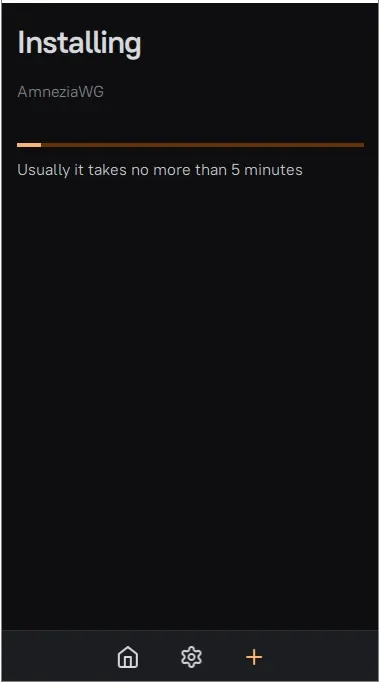
The app is actually doing a lot in the background:
- Setting up the firewall
- Routing your traffic
- Setting up encryption
- Starting services
- Picking which ports to use
You don’t have to mess with any of that stuff yourself.
Turn on the VPN
When it’s done, the app will ask if you want to connect.
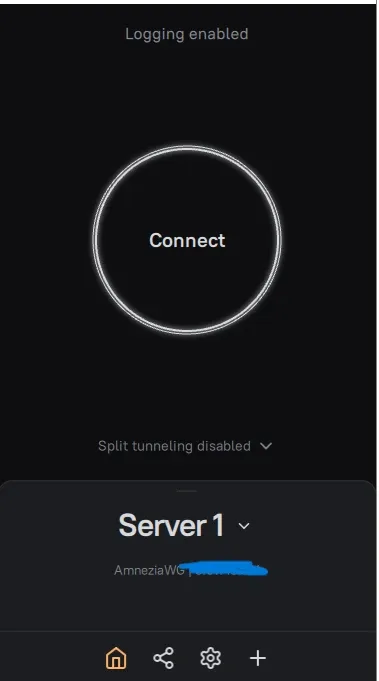
Click Connect.
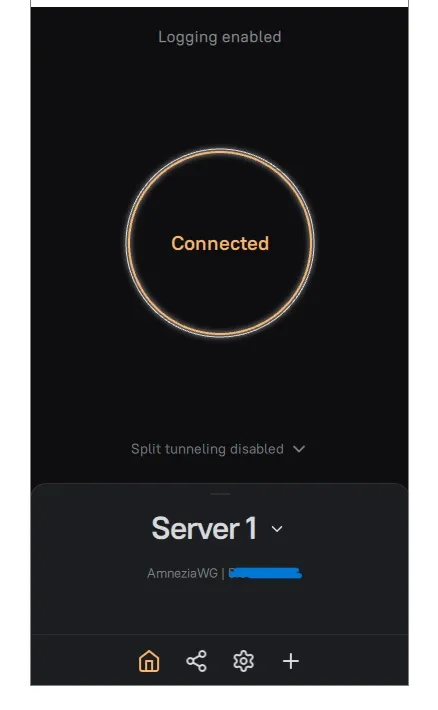
That’s it! Your connection is now going through your server. Basically, it looks like your traffic is coming from your server’s IP address instead of your home internet.
Your own personal VPN is ready to go.
Using It and Changing Things
You can change setups or add new ones whenever you want.
This means you can adapt if the internet gets more restricted, or if you just want to try something different.
Whether you need to be super sneaky or just want the fastest speeds, you can change things in the app.
The Bottom Line
Setting up Amnezia VPN on your own server puts you in control.
Instead of trusting a company to protect you, you’re doing it yourself. It’s a way to actually have privacy, not just hope for it.
It’s not too hard, even if you’re not a tech expert.
Once it’s set up and running, you have your own VPN that you can control and change as needed. It’s all yours.
FAQ
1. Do I need technical skills to set up Amnezia VPN?
Not really. If you can rent a server and follow simple step-by-step instructions, you’ll be fine. Amnezia automates most of the complex configuration for you.
2. How much does it cost to run a self-hosted VPN?
You only pay for the server. Basic VPS plans usually cost between $5–10 per month, depending on the provider and resources you choose.
3. Is a self-hosted VPN safer than a commercial VPN?
It gives you more control because you manage the server yourself. Your traffic isn’t shared with other users, and you decide how everything is configured.
4. Can I use my VPN on multiple devices?
Yes. You can install the Amnezia app on multiple devices and even share access with friends or family using the built-in “Share” feature.