How to Build a WordPress Multisite with Domains
Over the years, we’ve put together quite a few WordPress multisite setups with their own domains. We’ve done it for our own projects and for clients who needed a simpler way to handle multiple websites.
Let’s be honest, managing a bunch of WordPress sites separately can quickly get messy. Hosting can get expensive, you end up with too many dashboards, and keeping everything updated and secure becomes a real pain. That’s why we often recommend using a WordPress multisite setup where each site has its own domain name.
This cool feature in WordPress lets you control several sites from one place, but each one gets to keep its unique domain. Think of it as one central hub with many different storefronts.
In this guide, I’ll walk you through the steps to build a WordPress multisite setup that uses different domains for each site.
Before you can dive into advanced setups like a powerful Multisite network, you'll first need to get WordPress installed. For a quick and easy guide to getting WordPress up and running, you can follow these steps to Install WordPress with FastPanel: 7 Easy Steps (Beginner Guide).
Table of Contents
Why Use WordPress Multisite with Domains
Starting a single website with WordPress is super easy. But when you start adding more sites, things get complicated.
Each new site needs its own updates, backups, security, and general upkeep. Plus, a lot of basic hosting plans only let you have one WordPress site.
A multisite network solves all that.
So, What’s WordPress Multisite?
WordPress Multisite is a built-in feature that lets you create a bunch of websites from just one WordPress installation. Instead of dealing with a bunch of separate systems, you can manage everything from one central spot.
The best part is that each website on the network can have its own domain name. This is perfect if you have separate brands but want to keep things organized.
For business owners, it means you can get new sites up and running quickly without a lot of extra hassle. And for developers, it offers a cleaner setup, with shared themes, consistent components, and easier client management.
Just remember, all the sites share the same hosting. So, if your hosting goes down, all the sites on the network go down with it. It’s efficient, but they’re all connected.
Step-by-Step WordPress Multisite Setup
Step 1: Turn On and Set Up WordPress Multisite
If you’re starting from scratch, install WordPress first.
Most hosting companies like SiteGround offer one-click installs. Once WordPress is up and running, you’ll need to manually turn on multisite, since it’s off by default.
1.1 How to Turn On Multisite
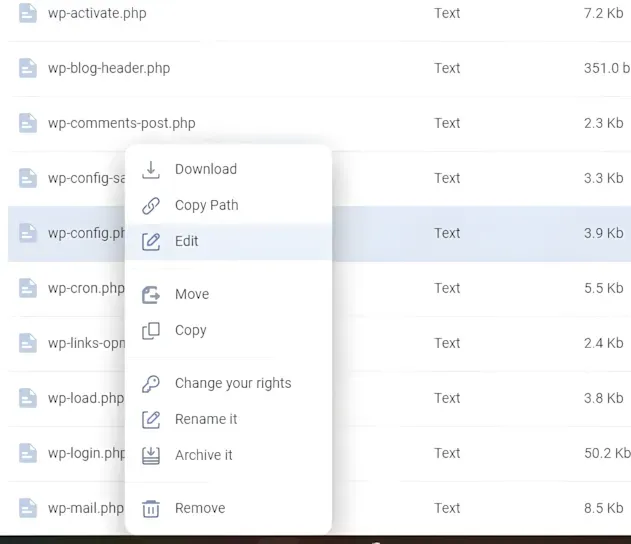
- Go to your
wp-config.phpfile using FTP or your hosting file manager. - Find the line that says: That’s all, stop editing! Happy blogging.
- Right above that line, add:
define( 'WP_ALLOW_MULTISITE', true );Save the file and upload it if you need to.
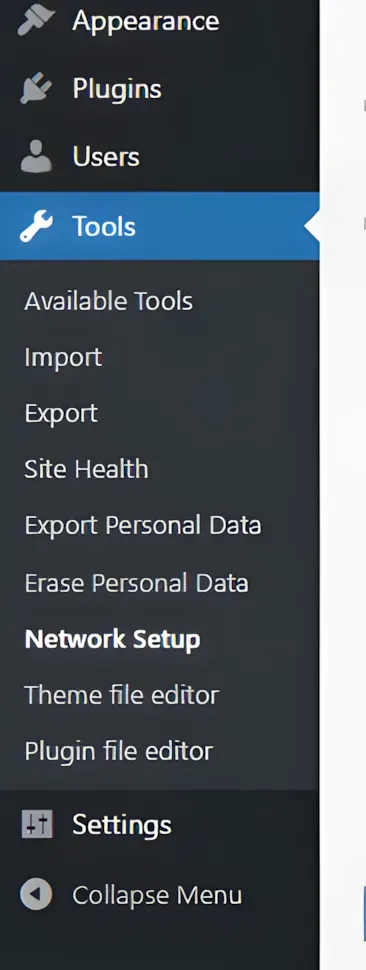
Go back to your WordPress dashboard and refresh the page. You should now see a new option under:
1.2 Tools → Network Setup
1.3 Setting Up the Network
On the setup screen:
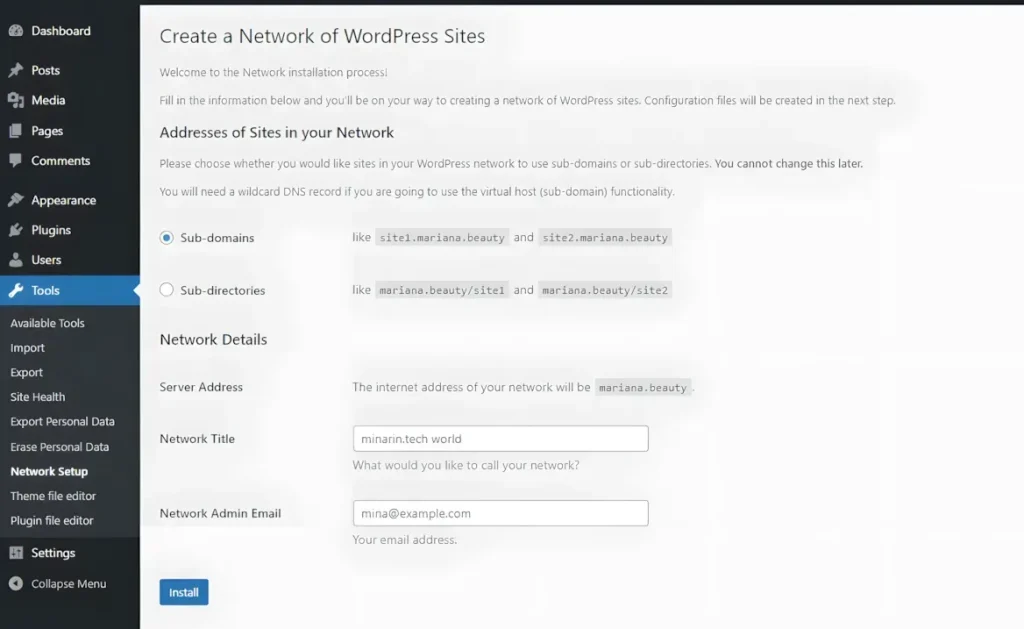
- Choose Subdomains for your site structure
- Give your network a title
- Enter the email for the network admin
Click Install.
WordPress will then give you two bits of code.
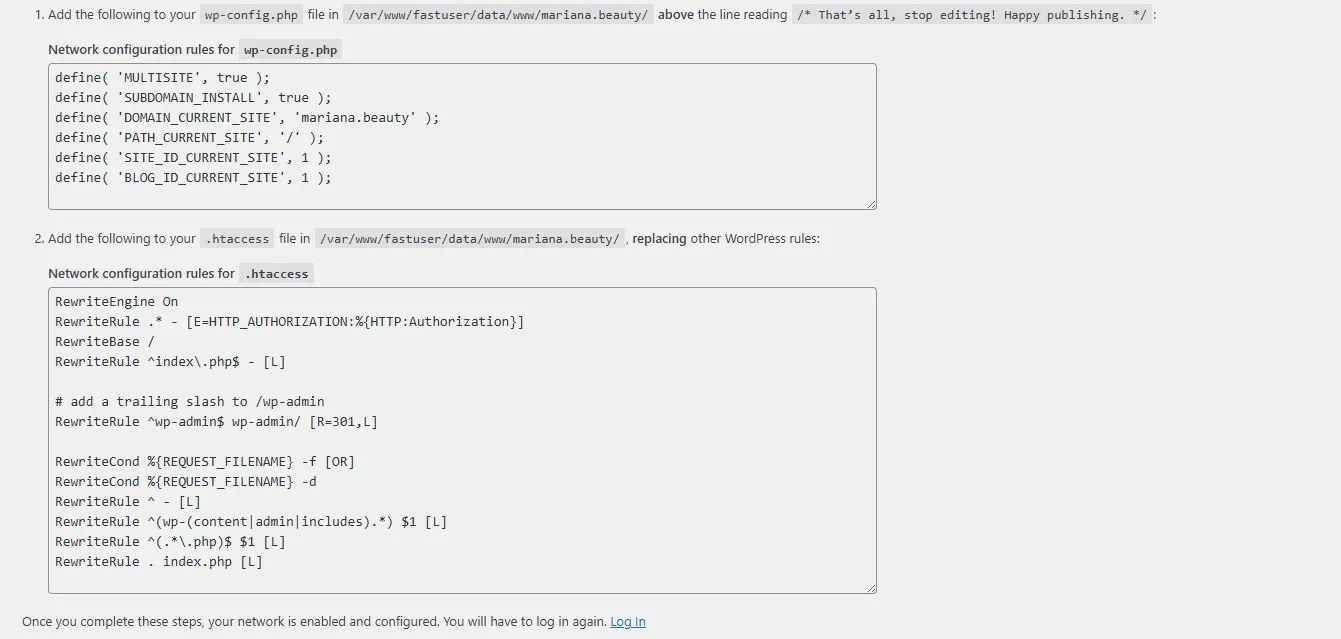
- The first one needs to go into your
wp-config.phpfile (above that same closing line from before). - Also, add this:
define('COOKIE_DOMAIN', $\_SERVER['HTTP\_HOST'] );This makes sure users can log in smoothly across all your sites.
- The second block of code replaces the default rules in your
.htaccessfile.
Once you’ve added both bits of code, log back into WordPress.
You’ll now see a new item in your admin bar called My Sites, which gives you access to the Network Admin Dashboard.
Step 2: Create New Sites and Add the Domain Names
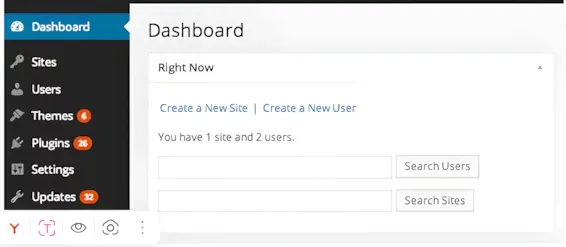
From the Network Admin Dashboard:
Go to:
Sites → Add New
Enter:
- Site Address (a temporary address is fine for now)
- Site Title
- Language
- Admin Email
Click Add Site.
Then:
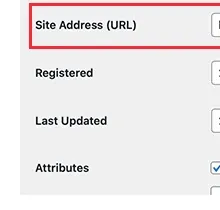
- Go to Sites → All Sites
- Click Edit under the site you just created
- Replace the Site Address with the domain name you want to use
WordPress now has built-in domain mapping. Once you enter the domain, it becomes the official address for that site on the network.
Save your changes.
Do this for each new site you want to create.
At this point, the domains are in WordPress, but they don’t yet point to your hosting server. We’ll fix that next.
Step 3: Link the Domains to Your Hosting Account
In SiteGround:
- Open Site Tools
- Go to Domains → Parked Domains
- Add your domain
Do this for each domain.
If you’re using a different hosting company, look for the Parked Domains or Addon Domains section in your dashboard. The process should be similar.
3.1 Updating DNS Records
If your domain registrar (where you bought your domain) is different from your hosting provider (where your website lives), you’ll need to change the DNS records.
Find your hosting provider’s nameservers. They’ll look something like this:
ns1.siteexample.comns2.siteexample.comLog in to your domain registrar account.
If you’re using Network Solutions:
- Choose Domains
- Select the domain you want to change
- Scroll down to Advanced Tools
- Go to DNS management
- Replace the existing nameservers with the ones from your hosting provider
- Save your changes
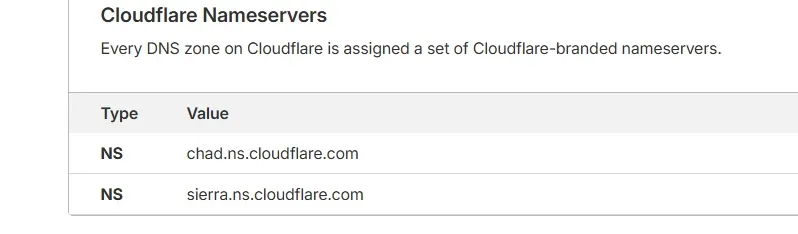
It can take anywhere from 2 to 48 hours for these changes to take hold everywhere. Once they do, each domain will show its site within the multisite network.
Step 4: Manage and Access Each Site
The main admin stuff, like installing plugins, setting up themes, and doing updates for everyone, is done from the Network Admin Dashboard.
To manage a specific site:
- Go to Sites → All Sites
- Click Dashboard below the site you want to work on
You might need to log in again.
From there, you can:
- Create pages
- Write blog posts
- Change the theme
- Manage users
Each site gets to run its own content, but they’re all still connected to the main network.
Final Thoughts
A WordPress multisite with different domains gives you a clear, organized setup without a lot of extra hassle. Instead of wrangling a bunch of separate websites, you can manage everything from one central system.
If you set it up carefully, with good hosting and the right DNS settings, it’s a really efficient way for agencies, business owners, and developers to manage multiple websites.
To keep your setup secure, look into some WordPress security best practices. Also, check out some good page builder plugins to make designing your sites easier.
One central hub. Unique websites. Easy control over complexity.
FAQ
1. Can I use different domain names on a WordPress multisite network?
Yes. WordPress has built-in domain mapping, so each site in your multisite network can use its own unique domain name.
2. Do I need separate hosting for each domain?
No. All sites in a multisite network run on a single WordPress installation and hosting account. You just need to connect each domain to the same server.
3. Should I choose subdomains or subdirectories for multisite?
If you plan to use different domain names, it’s usually best to choose subdomains during setup. It gives you more flexibility for domain mapping later.
4. Can each site have its own theme and plugins?
Each site can activate its own theme. Plugins are installed at the network level, and individual sites can activate the ones you allow.
5. What happens if my hosting goes down?
Since all sites share the same WordPress installation and server, if the hosting goes down, every site in the network becomes unavailable.
6. Is WordPress multisite good for agencies?
Yes. Multisite is ideal for agencies, developers, and businesses managing multiple websites. It simplifies updates, user management, and overall maintenance.
7. Do I need technical knowledge to set it up?
You’ll need basic knowledge of editing wp-config.php, managing DNS records, and accessing your hosting dashboard. It’s not overly complex, but it’s not fully beginner-level either.