NextDNS Secure Browsing: A Practical Guide to Privacy, Security, and Control
There’s a quiet layer of the internet most people never think about—yet it touches every single website you visit. It’s called DNS, and once you understand it, tools like NextDNS start to make a lot more sense.
NextDNS isn’t just another privacy tool. It sits at the foundation of your internet connection and quietly filters, protects, and reshapes how your device interacts with the web. It blocks malicious domains, strips away ads and trackers, improves security, and even gives you detailed insight into your browsing behavior. And perhaps most interestingly, it manages to do all of this without requiring complex setup or technical expertise.
So what makes it different—and why are more users starting to rely on it?
Understanding what makes NextDNS stand out is great, but if you're looking to explore even more powerful options for a secure and private internet experience, check out our guide to the Best DNS Providers for Privacy and Ad Blocking (Top 5 Powerful Picks).
Table of Contents
Why NextDNS Is Changing How We Browse the Internet
Most privacy tools operate at the browser level. Extensions block ads, VPNs mask IPs, and antivirus software scans files. But NextDNS works earlier in the chain—before your browser even connects to a website.
This positioning is powerful.
Instead of reacting to threats, NextDNS prevents them from ever reaching your device. It can block harmful domains outright, stop trackers from loading, and filter unwanted content across your entire system—not just one browser.
What used to require advanced setups like Pi-hole servers can now be done with a lightweight service that runs quietly in the background.
What DNS Really Does (And Why It Matters More Than You Think)
DNS (Domain Name System) is often described as the “phonebook of the internet,” and while that sounds simple, its role is critical.
Every time you type a website address, your device sends a request to a DNS server asking, “Where is this site located?” The server responds with an IP address, and your browser connects.
But here’s the catch: these requests are traditionally unencrypted.
That means your internet provider—or anyone monitoring the connection—can see which domains you’re accessing. Even if the website itself uses HTTPS, the DNS lookup can still expose your browsing habits.
Worse, DNS can be manipulated. Attackers can redirect you to fake versions of websites without you realizing it.
NextDNS addresses both of these issues by encrypting DNS queries and filtering malicious responses before they reach you.
Getting Started with NextDNS: Setup Without the Headache
One of the most appealing aspects of NextDNS is how easy it is to get started.
It supports nearly every platform—Windows, macOS, Android, iOS, Linux, and even routers and browsers. Installation usually involves a small background app that handles DNS requests automatically.

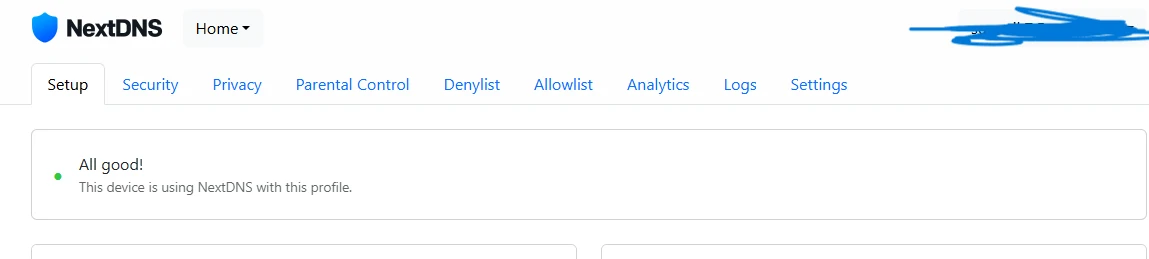
After installation, configuration happens through a web interface. You’re given a unique Configuration ID, which acts as the key to your custom settings. Once applied to your device, it ensures your DNS traffic follows your chosen rules.
There’s no need to build infrastructure or manage servers. Within minutes, your device can be running encrypted DNS with advanced filtering enabled.
Security Features That Work Quietly in the Background
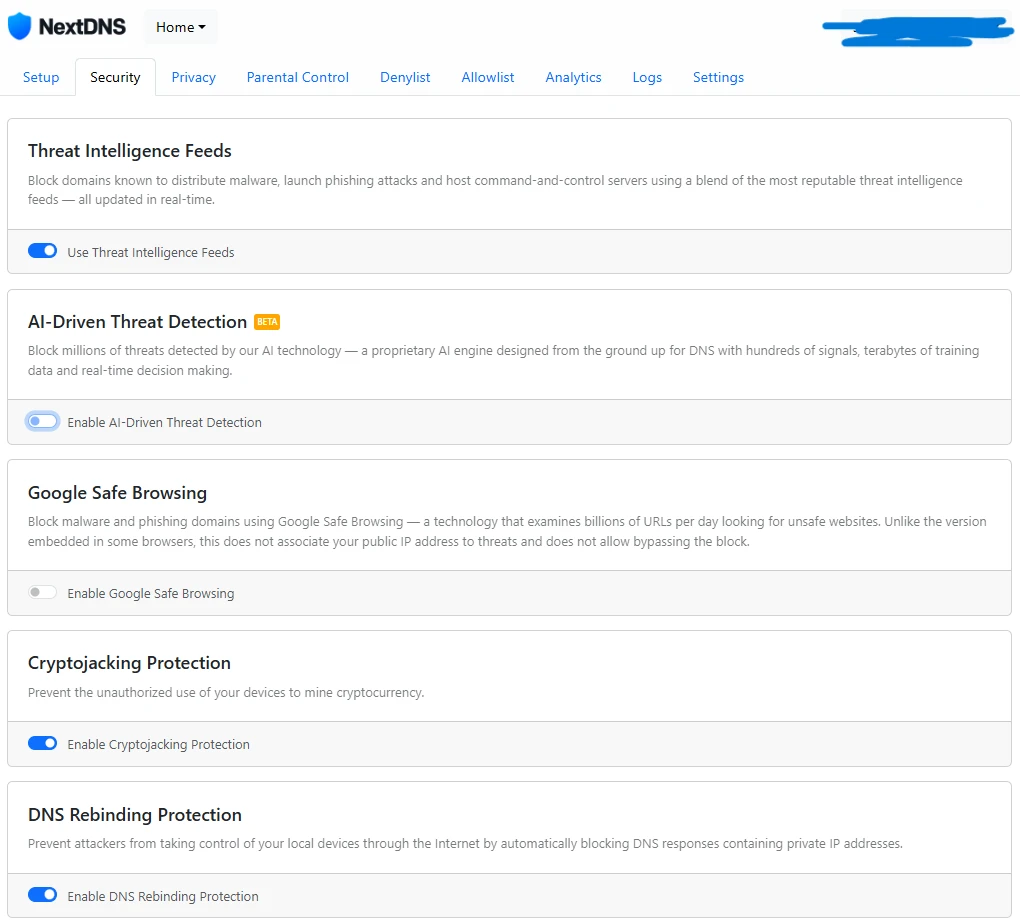
Once NextDNS is active, it begins filtering traffic using curated threat intelligence feeds.
These include:
- Known malware domains
- Phishing sites
- Typosquatting domains (fake sites designed to mimic real ones)
- Domains abusing international characters to impersonate others
The system is continuously updated, meaning protection evolves as new threats appear.
What’s particularly useful is flexibility. If a legitimate site gets blocked, you don’t need to disable protection entirely—you can simply whitelist that domain.
It’s a subtle but important design choice: security stays intact while exceptions remain easy to manage.
Privacy Controls: Blocking Ads, Trackers, and Data Leaks
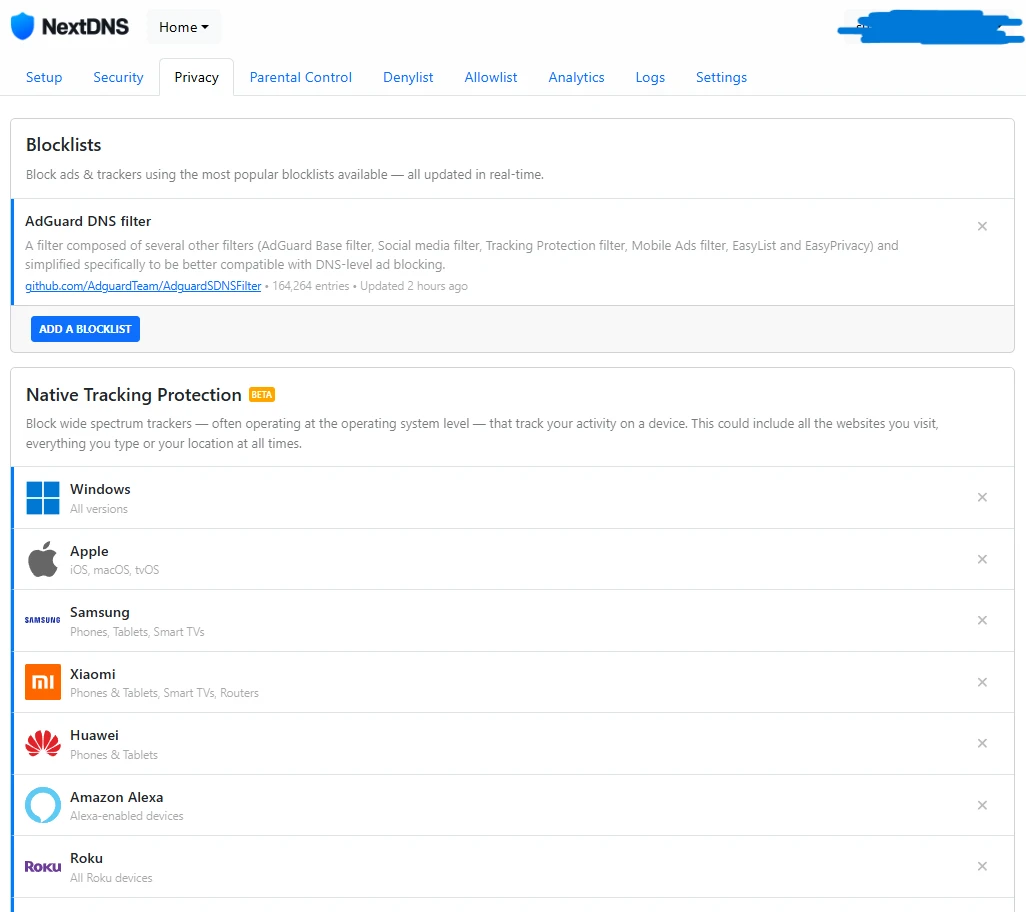
Beyond security, NextDNS focuses heavily on privacy.
Its built-in blocklists remove ads and prevent third-party trackers from collecting data. This doesn’t just clean up your browsing experience—it reduces the amount of information being sent to external services.
The default lists are already quite comprehensive, but you can go further by enabling stricter filters if needed.
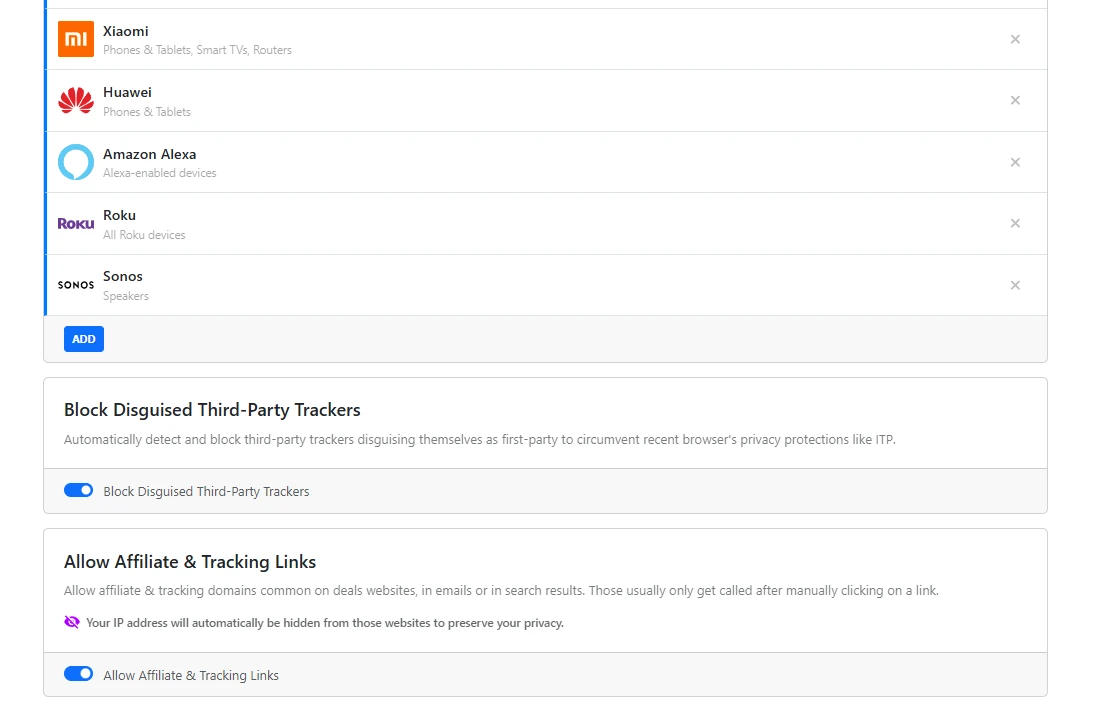
Interestingly, the system allows exceptions for affiliate and tracking links. While that may sound counterintuitive, it reflects a balanced approach—acknowledging that some tracking mechanisms support content creators without significantly impacting privacy.
Denylist and Allowlist: Fine-Grained Control Over Your Internet
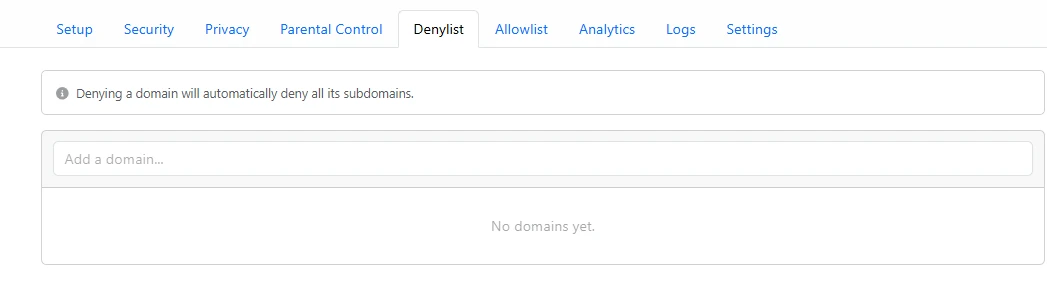
At some point, even the most advanced filters won’t perfectly match your needs. A useful website might get blocked, or something unwanted might still slip through. That’s where manual control becomes essential.
NextDNS gives you that control through Allowlist and Denylist.
The Allowlist lets you explicitly permit domains that should always be accessible, even if they’re flagged by security or privacy filters. Instead of weakening your overall protection, you simply create a targeted exception. It’s a subtle but important distinction that keeps your setup both secure and flexible.
The Denylist, on the other hand, allows you to block any domain manually. Whether it’s a persistent tracker, an annoying service, or a site you don’t want accessed on your network, you can shut it down completely.
What makes this feature especially powerful is that it works at the DNS level. These rules apply across all apps, browsers, and devices using your configuration—not just within a single environment.
Over time, this turns NextDNS into something more than a filter. It becomes a personalized layer of control, where you’re actively shaping your browsing experience instead of passively accepting default rules.
Parental Controls and Network-Level Restrictions
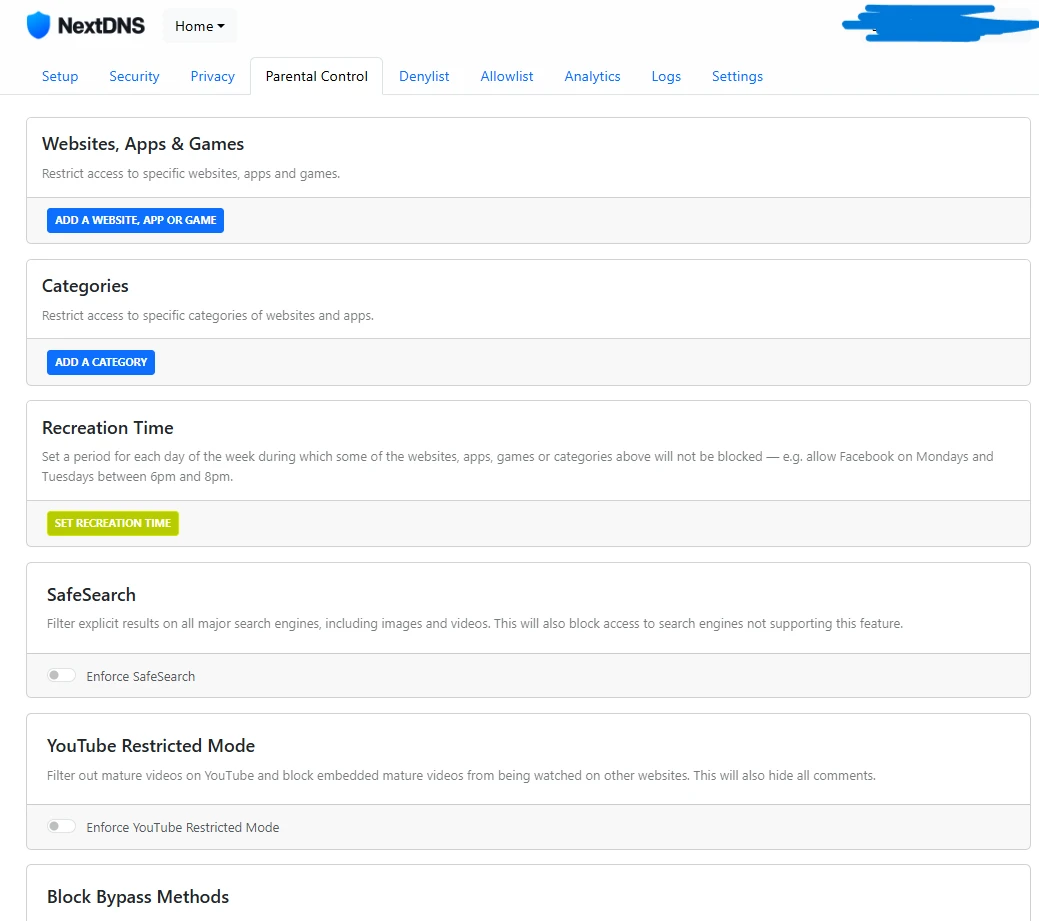
NextDNS also doubles as a network-level content filter.
You can restrict access to:
- Specific apps (like TikTok or Netflix)
- Entire categories (such as social media or adult content)
- Search results (via enforced safe search)
- YouTube content (through restricted mode)
It even includes the ability to block bypass methods like VPNs or Tor, which is particularly useful in controlled environments like family networks or schools.
This level of control is usually reserved for enterprise tools, yet here it’s accessible to everyday users.
Logs, Analytics, and What Your Data Reveals
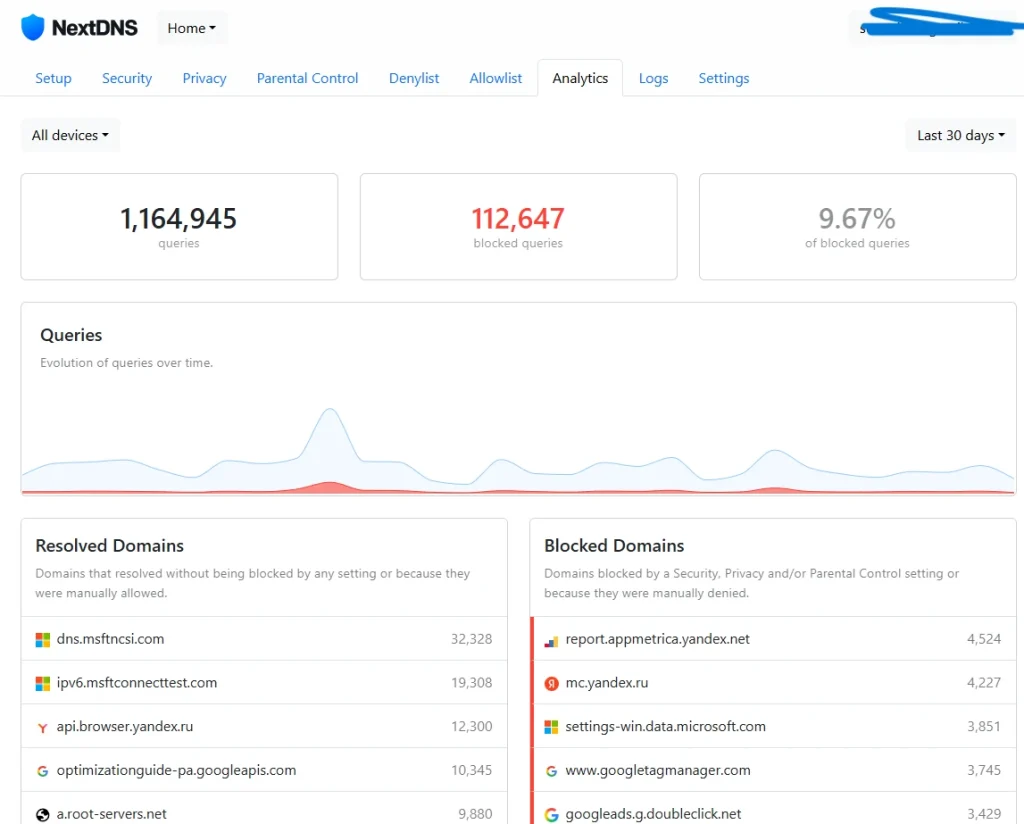
One of NextDNS’s more unique features is its analytics dashboard.
Depending on your settings, it can show:
- Which domains your device contacts most frequently
- How many requests are blocked
- Which devices generate the most traffic
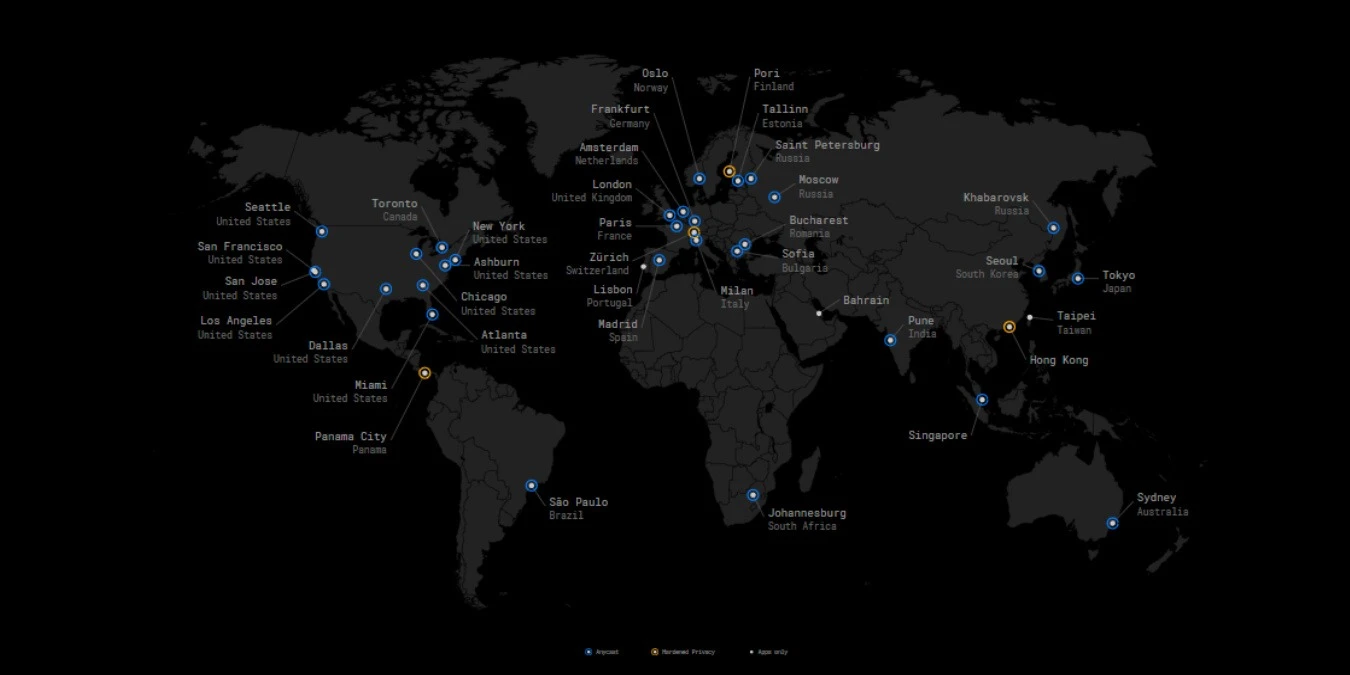
- Where your requests are being routed globally
There’s even a breakdown showing how much of your traffic goes to major tech companies.
For privacy-conscious users, this can be eye-opening. It transforms abstract concerns about tracking into something visible and measurable.
Fine-Tuning Settings for Maximum Privacy
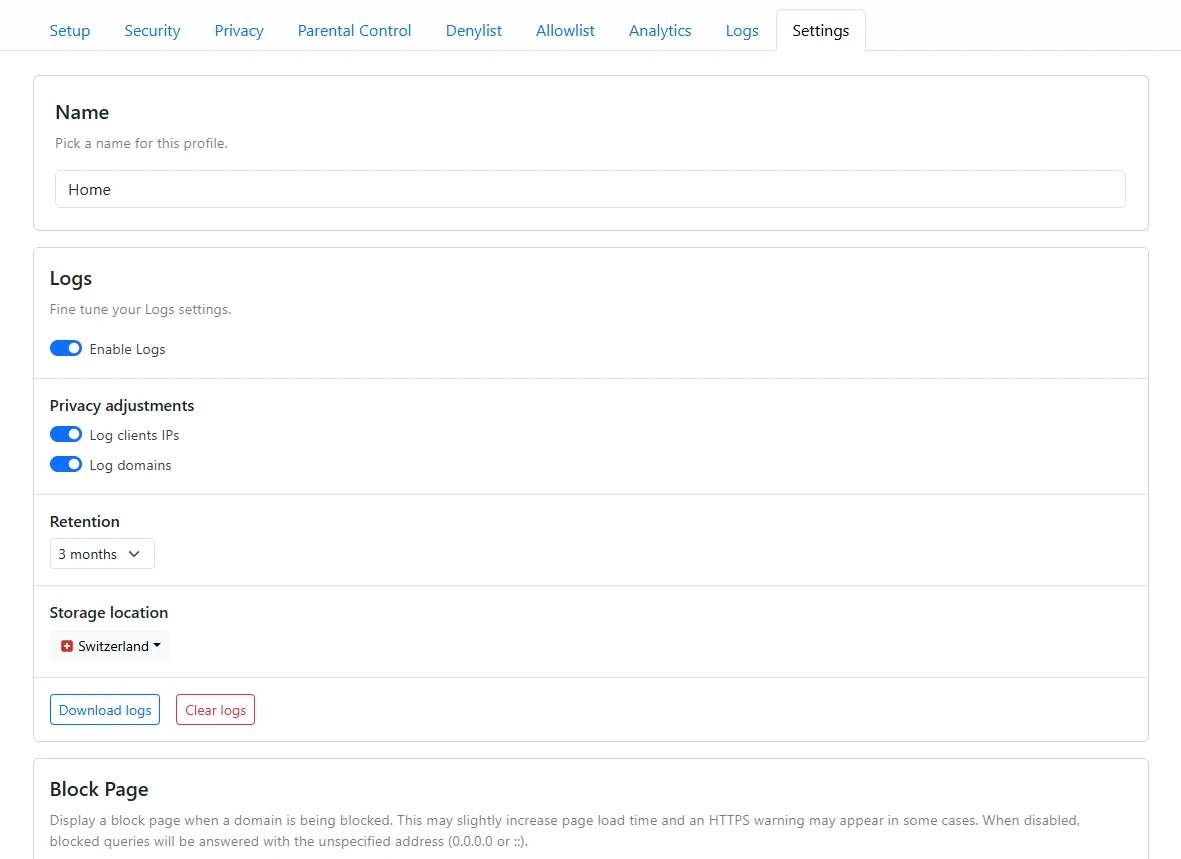
The real power of NextDNS lies in customization.
One of the most important settings involves logs. You can:
- Disable logging entirely
- Limit retention (from one hour to two years)
- Choose storage location (US, EU, or Switzerland)
There are also performance tweaks, like enabling EDNS Client Subnet for faster responses without major privacy trade-offs.
Even small details—like customizable block pages—show how much control the system offers.
Testing Your Setup and Avoiding DNS Leaks
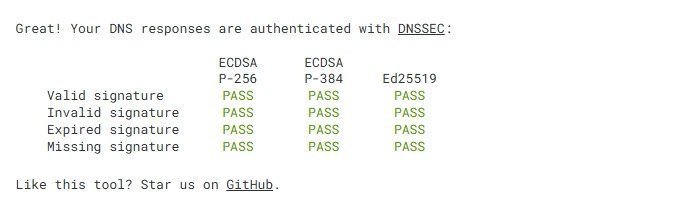
After configuration, it’s important to verify that everything is working correctly.
A DNS leak test ensures your requests are being routed through NextDNS rather than your ISP. Ideally, no ISP servers should appear in the results.
If they do, adjustments may be needed in your browser or router settings.
This step might feel minor, but it’s essential—without it, your privacy setup could be incomplete.
A Simple Way to Try NextDNS Yourself
By now, you probably have a good sense of what NextDNS can do. The real question is—does it actually make a difference in everyday browsing?
The easiest way to find out is to try it yourself.
NextDNS can be set up in just a few minutes, and you don’t need to commit to anything upfront. If you’re curious, you can start with their official setup page and create your own configuration:
Once you go through the initial setup, you’ll immediately notice fewer ads, cleaner pages, and a quieter browsing experience overall. And if you’re the type who likes to tweak things, the level of control available in the dashboard is surprisingly deep.
It’s one of those rare tools where the benefits become obvious almost instantly—and if it doesn’t fit your workflow, you can simply turn it off just as easily.
Is NextDNS Worth Using?
NextDNS sits in an interesting position.
It offers more control than traditional DNS providers like Google or Cloudflare, yet requires far less effort than self-hosted solutions like Pi-hole.
For many users, that balance is exactly what’s been missing.
It’s fast to set up, flexible enough for advanced users, and powerful enough to significantly improve both privacy and security. And perhaps most importantly—it works quietly, without constantly demanding attention.
If you’ve ever thought about taking control of your online privacy but didn’t want the complexity, this might be one of the simplest ways to start.