
XRay Reverse Proxy (VLESS/XTLS): Access Behind NAT, Port Forwarding & Pseudo VPN
If you’ve spent any time working with X-Ray, you already know it’s far more than just another proxy tool. Between VLESS, XTLS, and various obfuscation techniques, it’s often used to bypass restrictions and avoid detection.
But there’s a recurring question that comes up:
Can X-Ray do more than just proxy traffic? Can it actually reach devices hidden behind NAT or strict firewalls?
The answer is yes — and not only that. With the built-in reverse proxy mechanism, you can build surprisingly powerful network setups that go well beyond traditional proxy use cases.
Even though this feature is marked as experimental, in practice, it works reliably when configured correctly.
Just as X-Ray offers a powerful way to reach devices behind NAT, you can achieve similar remote access for your home server by learning the steps to implement a Reverse SSH Tunnel VPS: Steps to Access Home Server Behind CG-NAT Fast.
Table of Contents
What You Can Actually Do with X-Ray Reverse Proxy
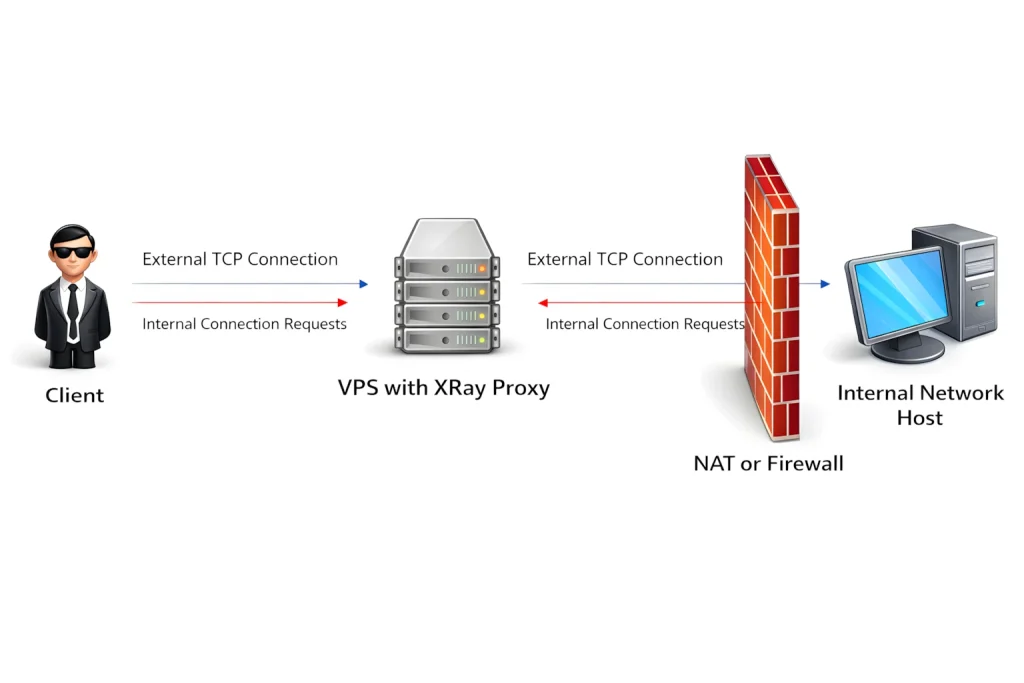
At first glance, a reverse proxy might sound like a niche feature. But once you understand it, you realize it opens the door to a wide range of practical scenarios.
For example, you can:
- Access services running on a machine behind a NAT or a strict firewall
- Route traffic through a remote network (e.g., use a home IP from another country)
- Bypass one-way DPI restrictions
- Forward ports through a proxy server
- Even attempts to build a pseudo VPN between clients
One particularly useful scenario is when services only allow local IPs. By routing traffic through a device in that network, you effectively appear as a local user.
How the Architecture Works: Client, Portal, Bridge
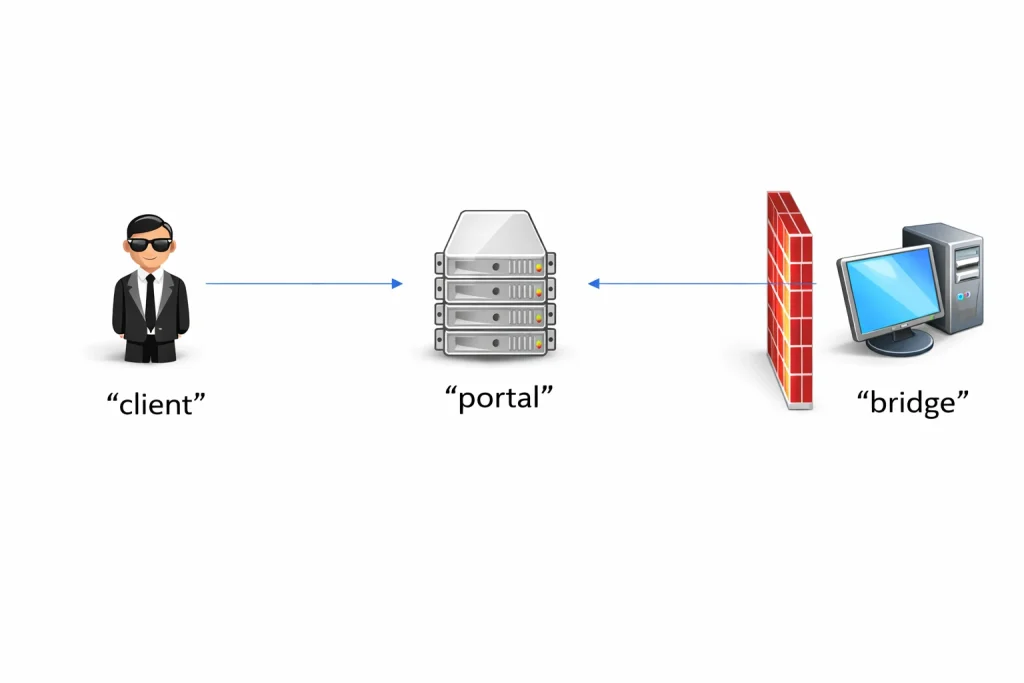
To avoid confusion, it’s important to understand the three core roles used in X-Ray:
- Client — the user trying to access a resource
- Portal — the public VPS server (entry point)
- Bridge — a machine behind a NAT or a firewall
The key idea is simple but powerful:
Instead of the server trying to reach the hidden device (which usually fails), the bridge initiates the connection to the portal first.
Once that connection exists, traffic can flow in the reverse direction — hence the name reverse proxy.
The diagram on page 3 clearly illustrates this: the client connects to the VPS, and the VPS forwards the request through an already established connection into the private network.
Now that the overall architecture is clear, let’s move on to the practical part — how to actually set this up.

The reverse proxy configuration is covered in the official XRay documentation:
https://xtls.github.io/en/config/reverse.html

However, the explanation there is fairly minimal and doesn’t always reflect real-world setups.

There’s also a GitHub repository with example configurations that can serve as a useful reference:
https://github.com/XTLS/Xray-examples/blob/main/ReverseProxy/README.ENG.md

In practice, combining the documentation with these examples makes the setup process much easier to understand.
Configuring the Server (Portal)
Let’s start with the VPS — this is the central hub of the setup.
{
    "reverse": {
      "portals": [
        {
          "tag": "portal",
          "domain": "reverse.hellohabr.com"
        }
      ]
    },
    "inbounds": [
      {
        "port": 5555,
        "tag": "incoming",
        "protocol": "shadowsocks",
        "settings": {
          "method": "2022-blake3-aes-128-gcm",
          "password": "...",
          "network": "tcp,udp"
         }
      }],
     "outbounds": [
        {
            "protocol": "freedom",
            "tag": "direct"
        },
        {
            "protocol": "blackhole",
            "tag": "block"
        }],
     "routing": {
        "rules": [
            {
              "type": "field",
              "inboundTag": ["incoming"],
              "outboundTag": "portal"
            }]
     }
  }
One subtle but important detail:reverse.hellohabr.com is a virtual domain. It doesn’t need to exist in DNS. It simply acts as an internal identifier for reverse proxy traffic.
When X-Ray sees this domain, it knows the connection is not normal traffic — it’s part of the reverse proxy system.
The routing rule ensures that incoming connections are redirected into the reverse proxy mechanism.
Configuring the NAT Device (Bridge)
Now comes the more interesting part — the machine hidden behind NAT.
{
  "reverse": {
    "bridges": [
      {
        "tag": "bridge",
        "domain": "reverse.hellohabr.com"
      }]
    },
    "outbounds": [
    {
      "protocol": "shadowsocks",
      "settings": {
        "servers": [{
          "address": "....",
          "port": 5555,
          "method": "2022-blake3-aes-128-gcm",
          "password": "...",
         }]
      },
      "tag": "outgoing"
    },
    {
      "protocol": "freedom",
      "tag": "direct"
    },
    {
      "protocol": "blackhole",
      "tag": "block"
    }],
    "routing": {
      "rules": [
      {
        "type": "field",
        "inboundTag": ["bridge"],
        "domain": ["full:reverse.hellohabr.com"],
        "outboundTag": "outgoing"
      },
      {
        "type": "field",
        "inboundTag": ["bridge"],
        "outboundTag": "direct"
      }]
    }
  }
Here’s the critical part:
The bridge continuously connects to the portal.
That persistent connection is what makes everything possible. When a client sends a request, it simply travels through this already-established tunnel.
Routing rules define:
- How the bridge connects to the portal
- What happens to incoming traffic
By default, everything is forwarded outward — but you can easily restrict access to specific IP ranges or services.
If you want to dive deeper into how routing works, the official XRay documentation covers it in detail.
How It Works in Practice
Once everything is running:
- The bridge connects to the VPS
- The portal registers it as a reverse proxy endpoint
- The client connects to the VPS
- The request is forwarded to the bridge
- The bridge executes it locally or forwards it further
From the client’s perspective, it feels like direct access — even though the target is hidden behind NAT.
Port Forwarding with XRay
One of the most practical applications is port forwarding.
Let’s say you want:
All traffic hitting port 80 on your VPS → forwarded to port 80 inside your private network
On the portal, add:
"inbounds":
[
  ....,
  {
    "tag": "web_server_forward",
    "port": 80,
    "protocol": "dokodemo-door",
    "settings": {
      "address": "127.0.0.1",
      "port": 80,
      "network": "tcp"
    }
  }
]
....
"routing": {
  "rules": [
    ....,

    {
      "type": "field",
      "inboundTag": ["web_server_forward"],
      "outboundTag": "portal"
    }
  ]
}
And on the bridge:
"outbounds":
[
  ...,
  {
    "tag": "web_server_local",
    "protocol": "freedom",
    "settings": {
      "redirect": "127.0.0.1:80"
    }
  }
]
...
"routing": {
  "rules": [
    ...,
    {
      "type": "field",
      "inboundTag": ["bridge"],
      "outboundTag": "web_server_local"
    }
  ]
}
After that, any request to port 80 on your VPS will be transparently forwarded into your local network.
No public IP required on the internal machine.
Common Issues and Debugging
If things don’t work, the problem is usually something simple.
One common issue:
many clients block private IP ranges (geoip:private) by default, which prevents access to local network resources.
Another issue is when the bridge fails to connect. You might see logs like:
failed to process reverse connection > empty worker list
This means the portal doesn’t detect any active bridge connections.
Sometimes the fix is surprisingly basic — rewriting the config from scratch has been reported to resolve issues.
Also, keep in mind that some protocols may get blocked. In restrictive environments, using VLESS + TLS is generally more reliable than Shadowsocks.
Can You Build a Pseudo VPN?
In theory — yes.
If you:
- Assign separate portals for each client
- Use virtual IP addressing
- Define routing rules between them
You could create a system where clients communicate through the proxy — similar to a VPN.
But in practice, it becomes complicated quickly:
- Configuration grows messy
- Debugging becomes difficult
- Limited support on mobile clients
So if you actually need a VPN, it’s still better to use dedicated solutions like WireGuard or OpenVPN
Source: Habr